
Pass Template Builder Settings for a Generic Pass #
The Pass Template for a Generic Pass allows users to create a generic pass template.
Appearance
Customize the appearance for the generic Pass by adding logos, a background color, and a card title.
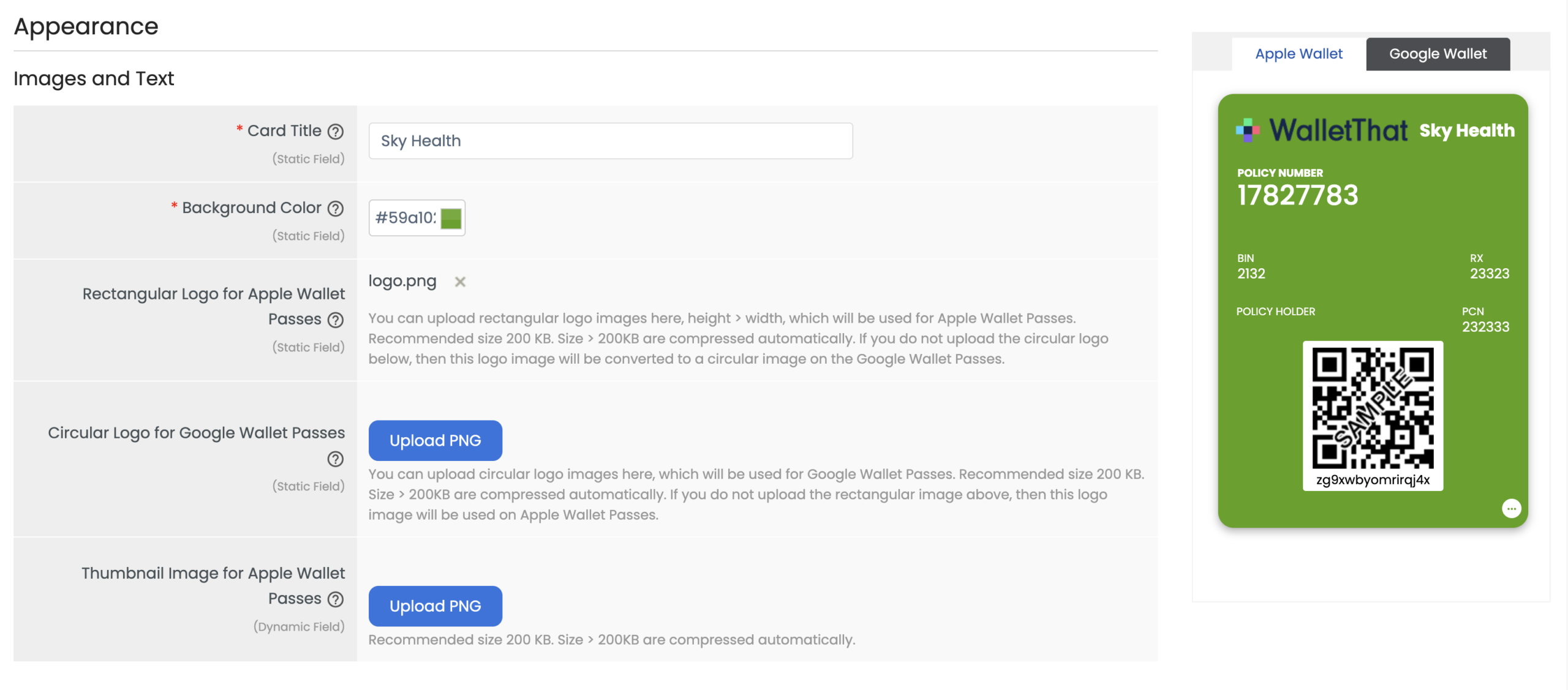
| Field | Description |
|---|---|
| Card Title |
Add a card title which will be displayed on the top of the generic Pass to the right of the logo. The card title is typically the name of the company/organization issuing the Pass. An ellipsis will be displayed if the card title exceeds 15 characters. The card title is required to generate generic Passes. |
| Background Color |
Set a background color for the Pass. The format is #rrggbb, where rrggbb is a hex RGB triplet, such as #ffcc00. The background color is the same for every Pass installed using this template. |
| Rectangular Logo for Apple Wallet | Upload the Apple Wallet logo that will appear on the customer’s generic Pass. The logo will appear square/rectangular in the top left corner of the Pass on Apple Wallet. The recommended sizes are 160px by 50 px, 320px by 100px or 480px by 150px. It is recommended to leave the logo with a full bleed background color and a 15% margin. The logo is not required. |
| Circular Logo for Google Wallet |
Upload the Google Wallet logo that will appear on the customer’s generic Pass. The logo will appear rounded in the top left corner of the Pass on Google Wallet. The minimum size is 660px by 660px and the maximum size is 840px by 840px. It is recommended to leave the logo with a full bleed background color and a 15% margin. The logo is not required. |
| Thumbnail Image for Apple Wallet Passes |
Upload a thumbnail image to be displayed to the right of the header field. The thumbnail image is not required. |
Universal Fields
Main Fields
These fields will appear on the front of the Pass for both Apple Wallet and Google Wallet.
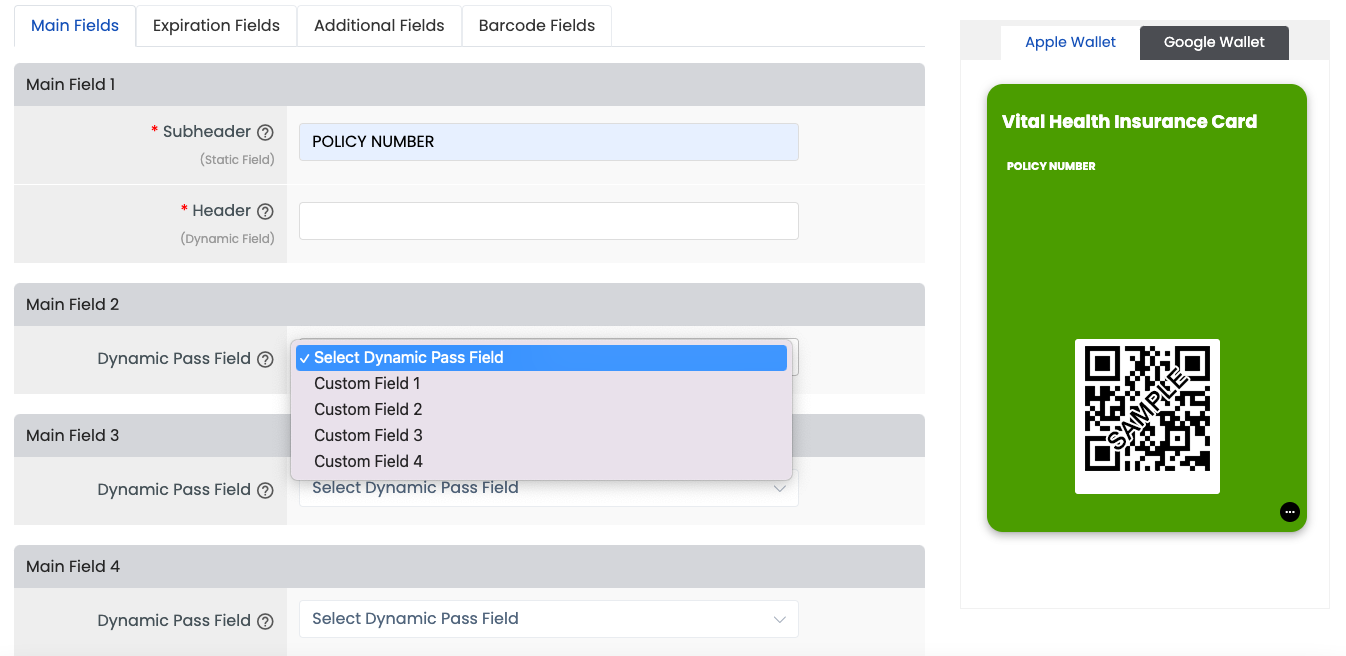
| Field | Description |
|---|---|
| Main Field 1: Subheader/Header | The subheader and header fields are displayed below the logo on both Apple Wallet and Google Wallet generic passes. The subheader is the label for the header field. The header value is a dynamic field, therefore, it can be set in the template or personalized for each user. |
| Main Field 2-5: Custom Fields 1-4 | Add up to 4 custom fields on the pass. The first two custom fields appear in a row below the subheader/header and the last two custom fields appear below custom fields 1 & 2 in a row. |
Expiration Fields
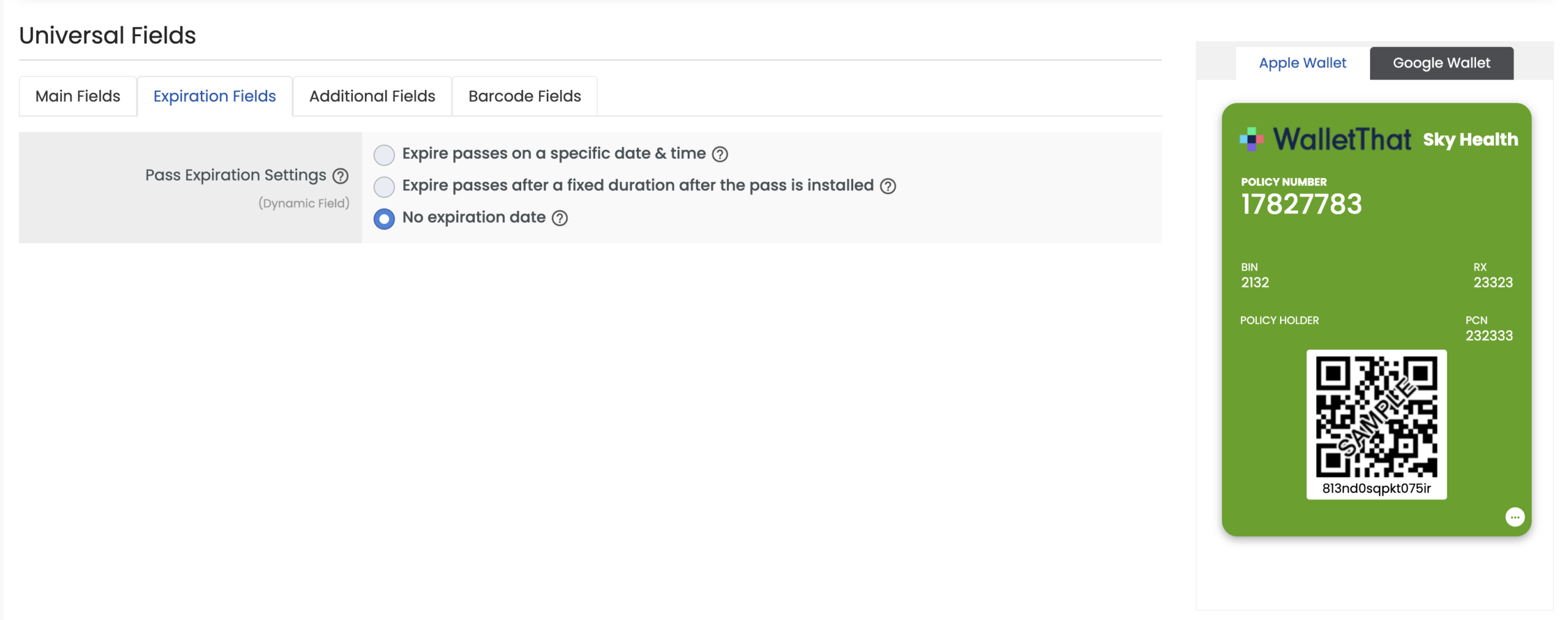
| Field | Description |
|---|---|
| Set default expiration date time | (Optional) Add an expiration date for all Passes that are installed for this Template. The timezone will be used as default, if not sent in the request when generating/updating passes via API. |
| Expire passes automatically after fixed duration | Automatically expire passes by setting a fixed duration after which the pass gets expired automatically from the time of its first generation/installation. If a specific expiration date and time is set for the pass record, then these settings will be overridden by the pass record’s expiration date and time. |
| No Expiration Date | Choose this option if you do not want to set an expiration date. |
Additional Fields
These fields will appear on the back of the Pass on Apple Wallet and in the Pass Details section on Google Wallet.
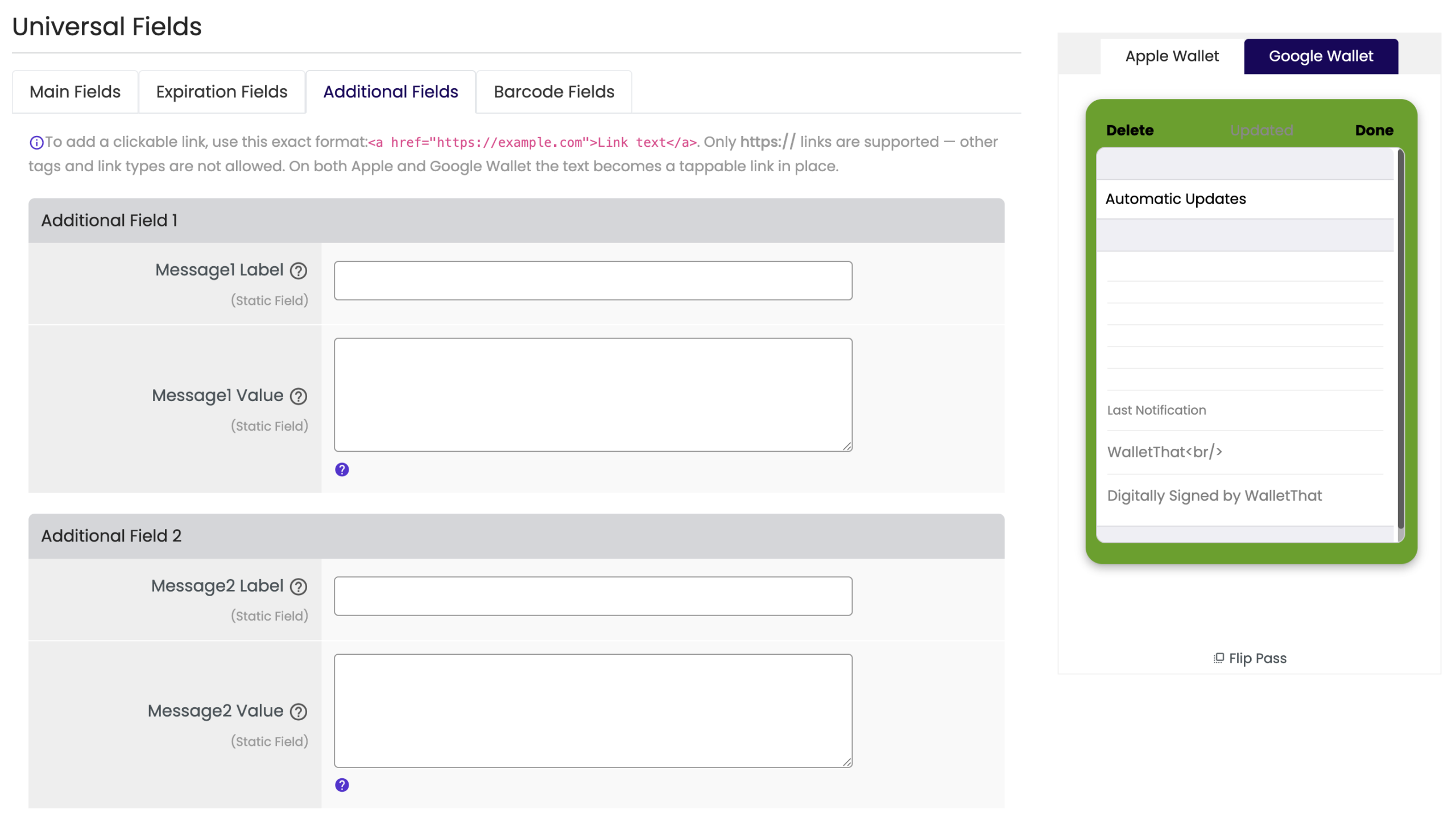
| Field | Description |
|---|---|
| Message 1, Message 2 & Message 3 | These are optional fields to add messages on the back of the Pass for Apple Wallet or in the Pass Details section below the Pass for Google Wallet. These fields allow line breaks and links. Supports <a href=”https://…”>Link text</a> anchor links (https only) as well. |
| Text Module | The recommended maximum length for the label is 35 characters to ensure the full string is displayed on smaller screens. The value of the Text Module is defined as an uninterrupted string. Recommended maximum length is 500 characters to ensure the full string is displayed on smaller screens. This field also allows line breaks. |
| Link 1 & 2 | Add any link including a link to a telephone number, URL, email address, or specific location. Google Wallet uses special icons to distinguish different types of URI’s for the fields that use links. To use an icon, select from the drop-down menu and enter the correct data. |
Transaction Fields
The barcode settings for Generic Passes are on their own Transaction Fields tab in the Pass Template Builder. They were previously shown under Universal Fields; the fields themselves have not changed. This keeps the tab structure consistent across all Pass types.
The Redemption System option also appears on this tab, but only Use My Own Redemption System can be selected for Generic Passes. Use WalletThat’s URL Redemption is shown greyed out, and hovering over it displays the message “This option is currently only available for coupons and loyalty cards.”
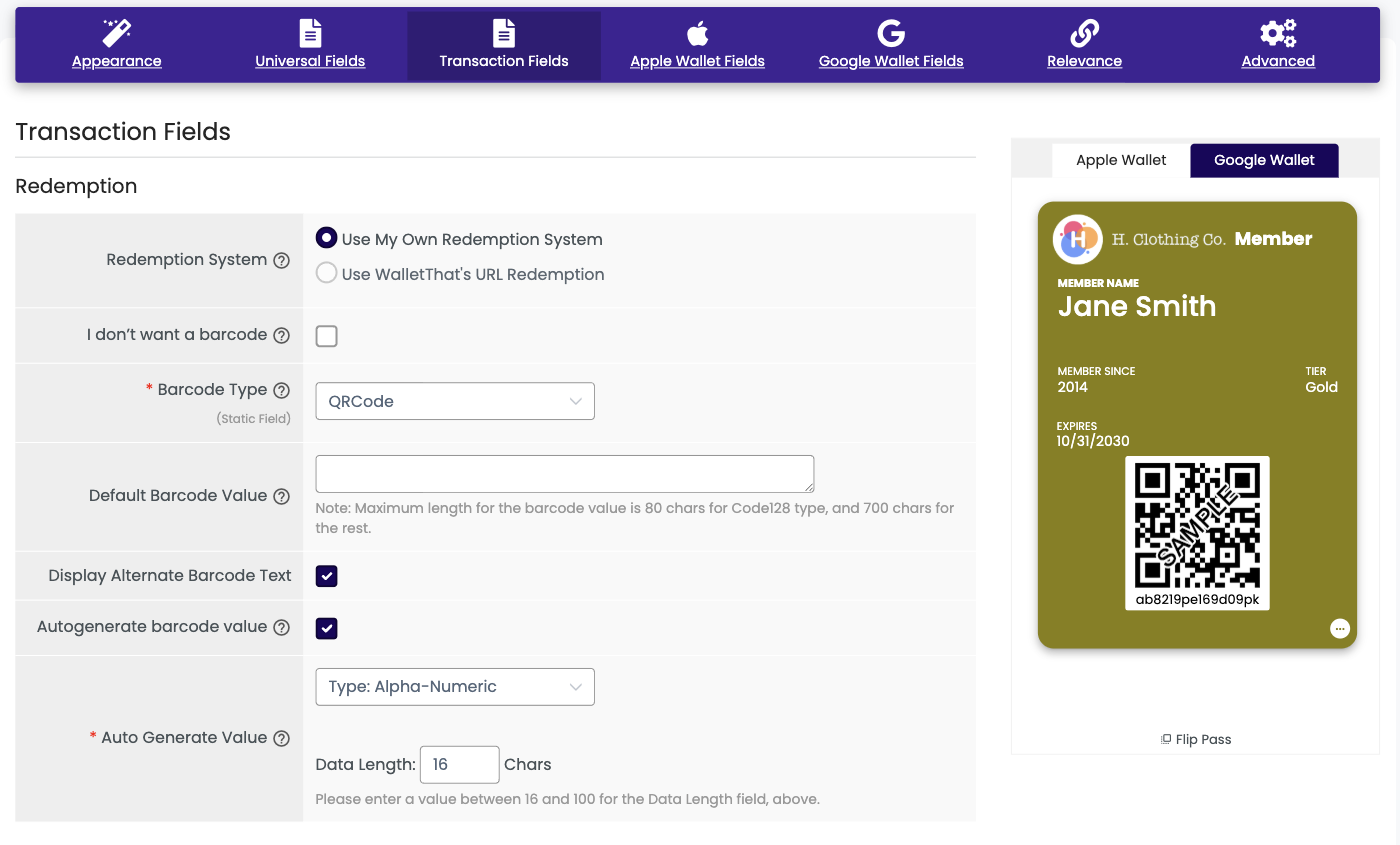
| Field | Description |
|---|---|
| I don’t want a barcode | Choose this option to remove the barcode from the Pass Template. If this is selected, no barcode will appear on any Passes issued using this Template. |
| Barcode Type | Select the type of barcode you want to use on the Pass. Supported types include: QR Code, Code 128, Aztec, and PDF 417. You can remove the barcode by selecting: No barcode. |
| Default Barcode Value | Select the default barcode value that will appear if no value is passed in the API or if you have not selected ‘autogenerate barcode’ |
| Display Alternate Barcode Text | Check this box to show the barcode value as text below the barcode on the Pass. Uncheck it to hide that text. This setting is enabled by default, so Pass Templates created before this option was added are unaffected. |
| Autogenerate Barcode Value | Check this box if you want to generate a random barcode value for your Passes. |
| Autogenerate Value | Select the data type and data length (10-100 characters) of barcode you would like to autogenerate:Numeric OnlyAlphabet OnlyAlphanumeric |
| Preview Barcode | Enter text in this box to preview how the barcode will be displayed on the actual Pass. |
Apple Wallet Fields
The fields listed in the ‘Apple Wallet Fields’ tab are only applicable to Apple Wallet Passes.
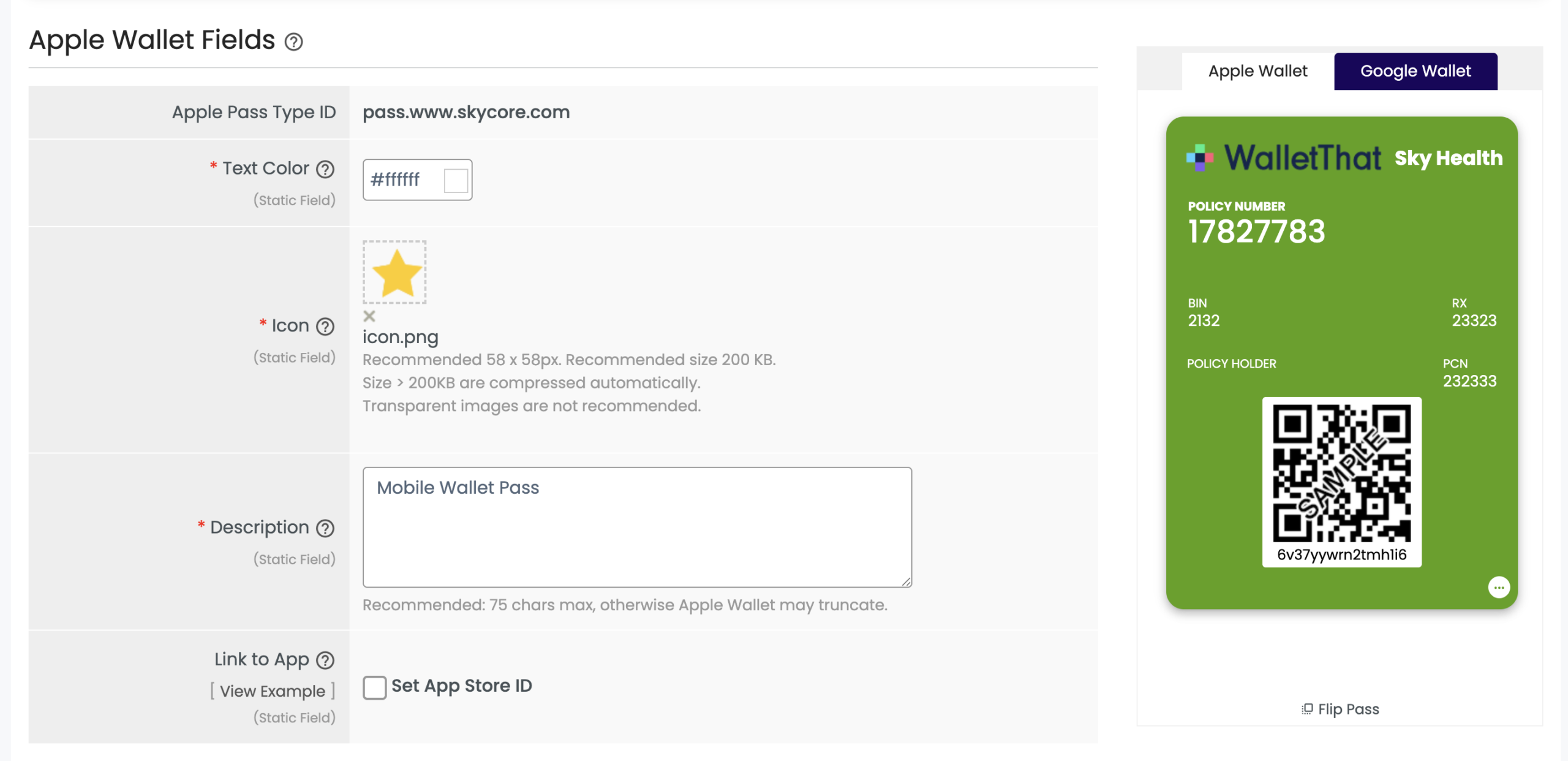
| Field | Description |
|---|---|
| Apple Pass Type Id | The Apple Pass Type ID assigned to this Pass Template. If you have multiple Pass Type IDs, you can select which one to associate with this template from the dropdown menu. |
| Text Color | Add any color to the text fields on Apple Passes only. |
| Icon | Add an icon that will appear on your customer’s lock screen for Pass updates and notifications. |
| Description | Add a description for blind and low vision users on Apple Passes. |
| Link to App | Link an app to the Pass. The app will appear on the back of Apple Wallet Passes and an app icon will be displayed on the front of the pass in the bottom left corner. |
| iBeacons – UUID, Major, and Minor Values, and Relevant Text | Add up to 10 iBeacons for each Pass. Defining the UUID, Major, and Minor values are necessary for the iBeacon to work. Add relevant text that will appear on the customer’s screen when the iBeacon is detected in a range. |
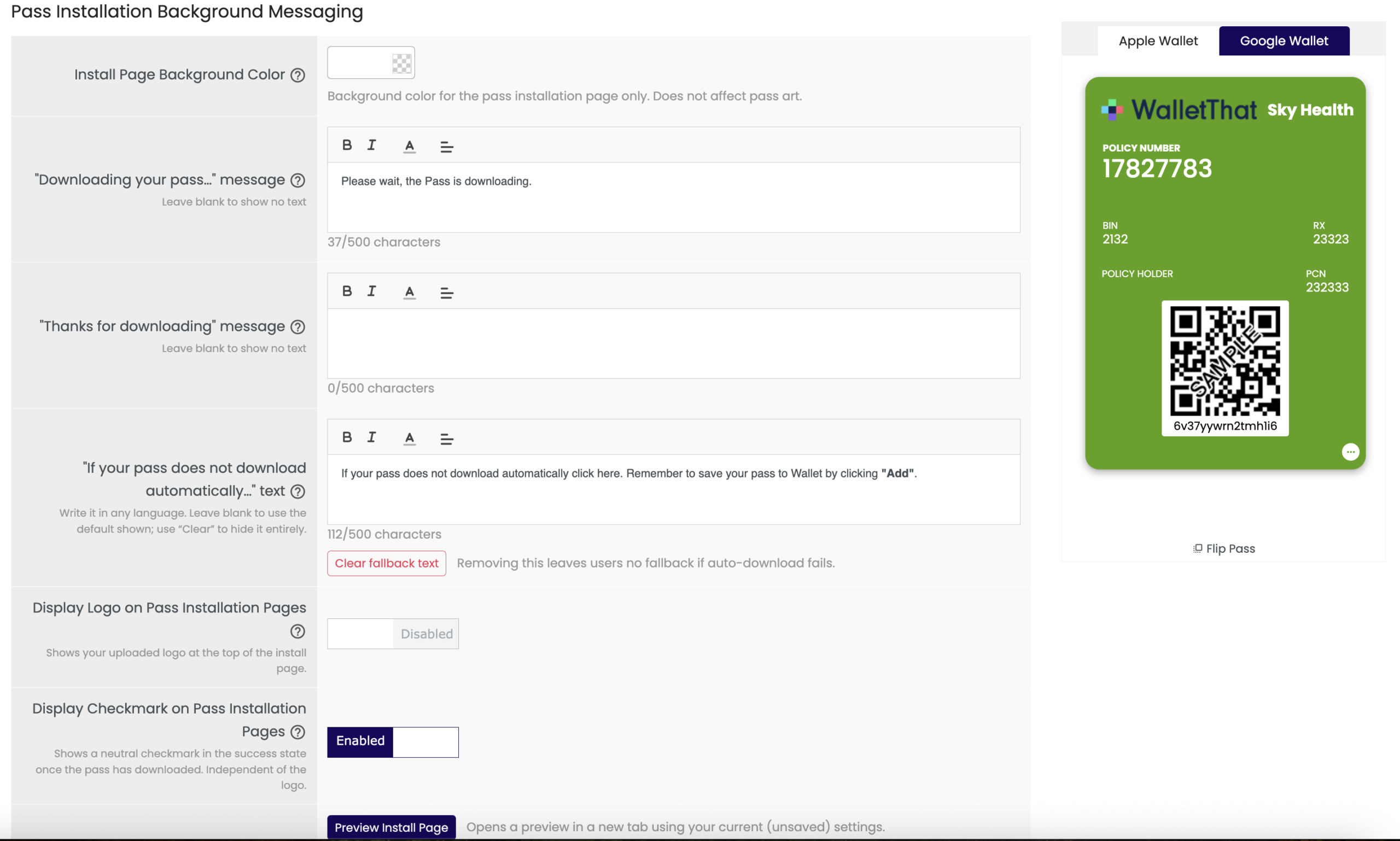
| Install Page Background Color | Set the background color for the pass installation pages. |
| “Downloading your pass…” message |
Custom rich-text shown as the “downloading your pass” message on the pass installation page. |
| “Thanks for downloading” message | Custom rich-text shown as the “thanks for downloading your pass” message on the pass installation page. |
| “If your pass does not download automatically…” text | Custom rich-text to display to the end user if their Pass fails to download. Write it in any language. Leave blank to use the default shown; use “Clear” to hide it entirely. |
| Display Logo on Pass Installation Pages | Choose whether or not you want to display the logo uploaded in the above field on the installation pages. |
| Display Checkmark on Pass Installation Pages | Choose whether or not you want to display a generic checkmark on the installation pages. |
| Preview Install Page | Click “Preview Install Page” to test your installation pages. |
Google Wallet Fields
The fields listed in the ‘Google Wallet Fields’ tab are only applicable to Google Wallet Passes.
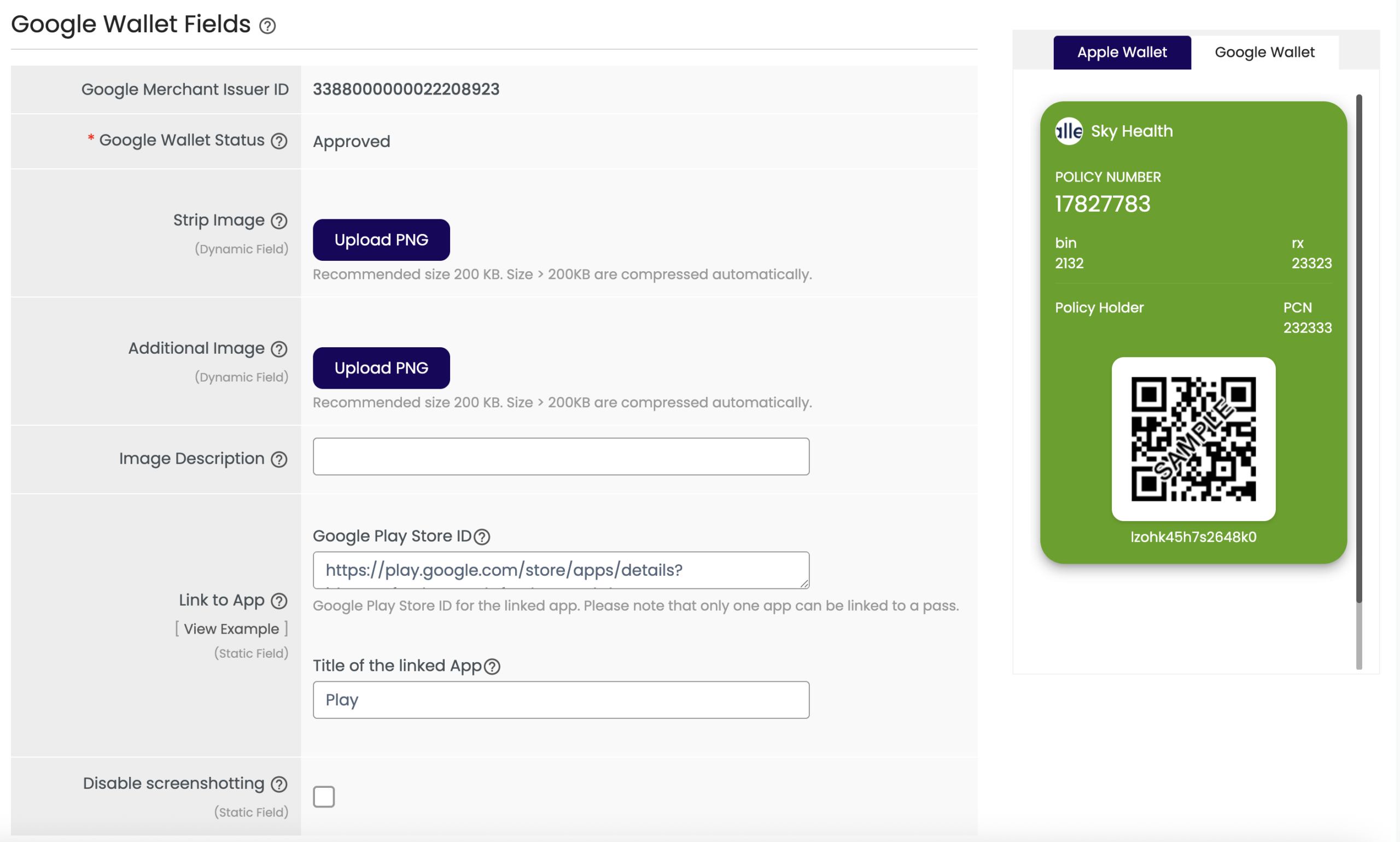
| Field | Description |
|---|---|
| Google Issuer ID |
The Google Issuer ID assigned to this Pass Template. If you have multiple Issuer IDs, you can select which one to associate with this template from the dropdown menu. |
| Strip Image | The strip image is displayed as a banner below the barcode for Google Wallet Generic Pass Only. The required image type is a PNG file. The recommended image size is 1032px by 336px. Use an image with a colored background for the best results. |
| Additional Image | If you choose to upload an additional image for Google Wallet Passes, the image will appear below the Pass. The image will not appear anywhere on Apple Wallet Passes. |
| Additional Image Description | Add a description for the additional image. The description will not appear on the Pass. |
| Link to App | Enter the Google Play Store ID to link an app to the Google Wallet Pass. |
| Disable Screenshotting | Enable or disable screenshotting on Google Wallet Passes by checking this button. |
Relevance
| Field | Description |
|---|---|
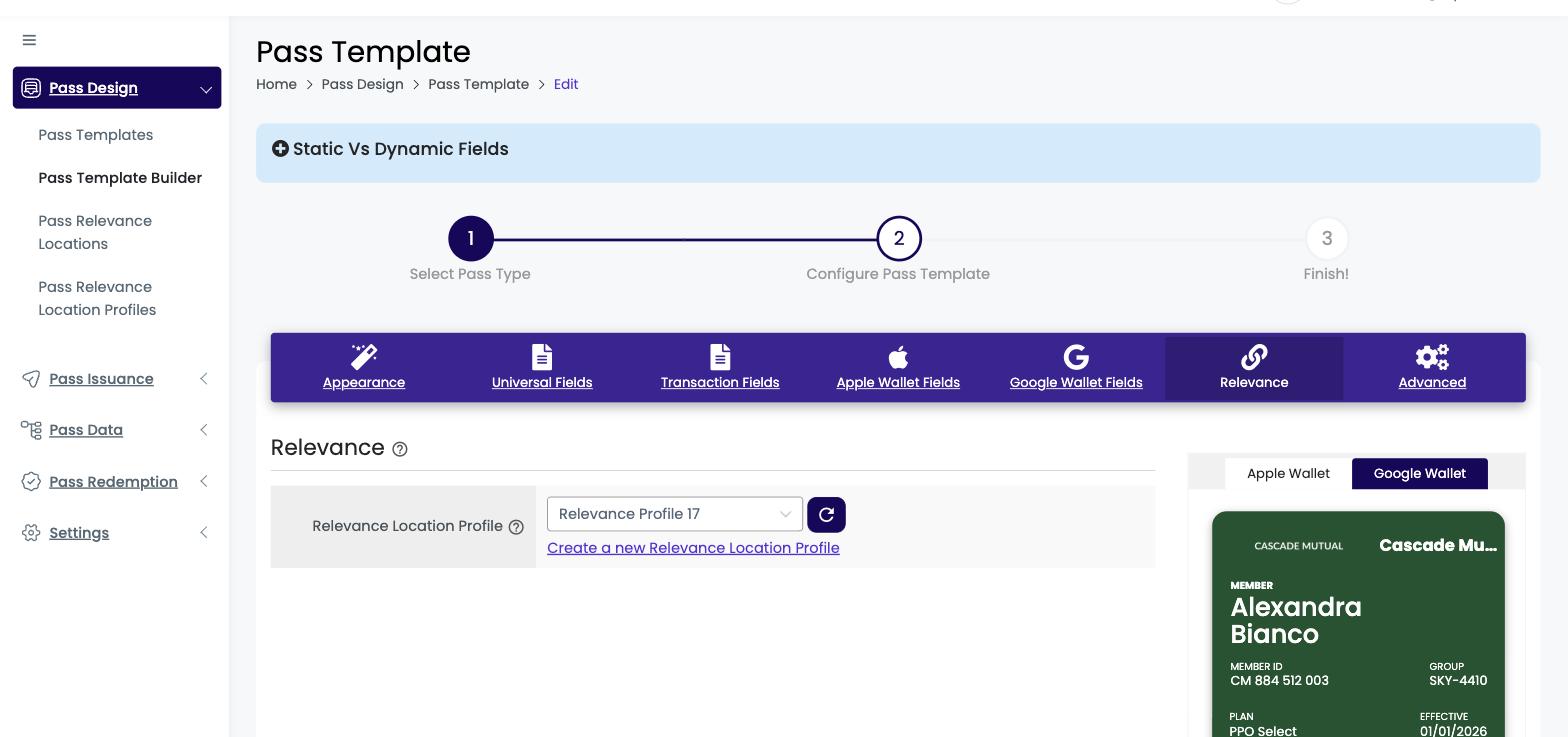
| Relevance Location Profile | Select a saved Pass Relevance Location Profile from the drop-down to link it to this Pass Template. When a customer’s device is near any location in the profile, a message appears on their lock screen for Apple Wallet Passes; Google Wallet Passes show a predefined message. Select No relevant locations to save the template without a profile. If a profile you just created is not listed, click the refresh button next to the drop-down. Relevant locations that were previously added to a template one at a time have been moved into a Relevance Location Profile automatically. Learn more in Pass Relevance Location Profiles. |
| Create a new Relevance Location Profile | Click this link to open the Create Pass Relevance Location Profile page and build a new profile. |
| Closest 10 locations | A profile can hold up to 100 locations, but Apple Wallet and Google Wallet only support 10 relevant locations per Pass. When a customer installs a Pass, WalletThat detects their approximate location from their browser’s IP address and saves the 10 locations in the linked profile that are closest to them to that Pass. This happens automatically, so there is nothing to configure. |
Advanced
| Field | Description |
|---|---|
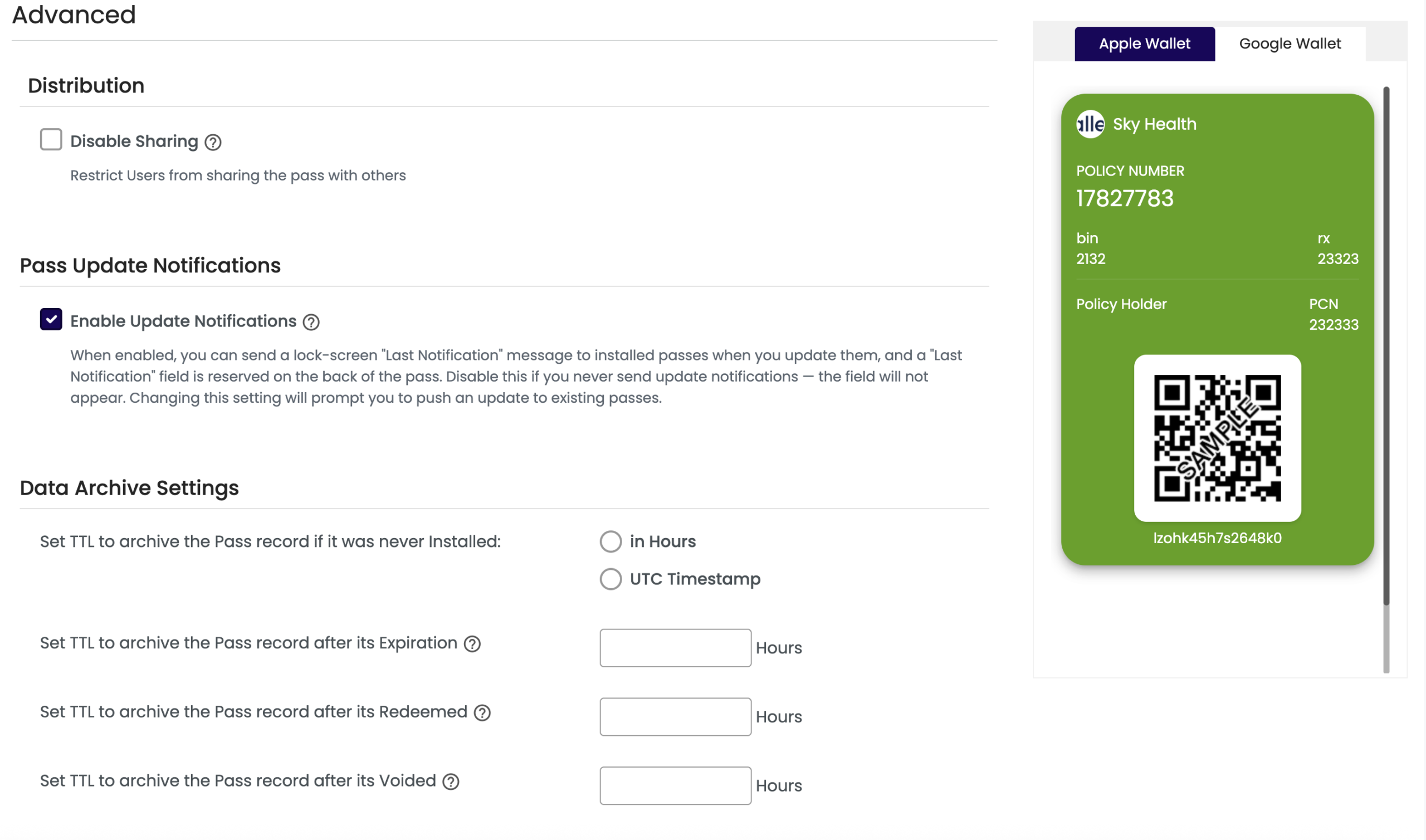
| Disable Sharing | Selecting this option will disable your customers from sharing the Pass on Apple Wallet or share the Pass install link on both Apple Wallet and Google Wallet to another device. For Google Wallet, this sharing setting becomes permanent once Passes have been issued using this template. |
| Enable Update Notifications | When enabled, you can send a lock-screen “Last Notification” message to installed passes when you update them, and a “Last Notification” field is reserved on the back of the pass. Disable this if you never send update notifications — the field will not appear. Changing this setting will prompt you to push an update to existing passes. |
| Data Archive Settings | These settings allow you to set a TTL (time to live) for each Pass. TTL settings can be set per Pass Template so that the value set for the TTL will get updated for each Pass depending on the events that occur. |
Prefer to automate this? You can also create and update generic Pass Templates with the CreatePassTemplate and UpdatePassTemplate calls in the Generic Pass API.