
How to Set Up and Use Redemption
WalletThat’s redemption feature enables clients to mark coupons and loyalty cards as redeemed by having their redemption staff enter a valid redemption PIN and choosing an offer to redeem. Follow the redemption setup steps below:
Step 1: Add Redemption Staff #
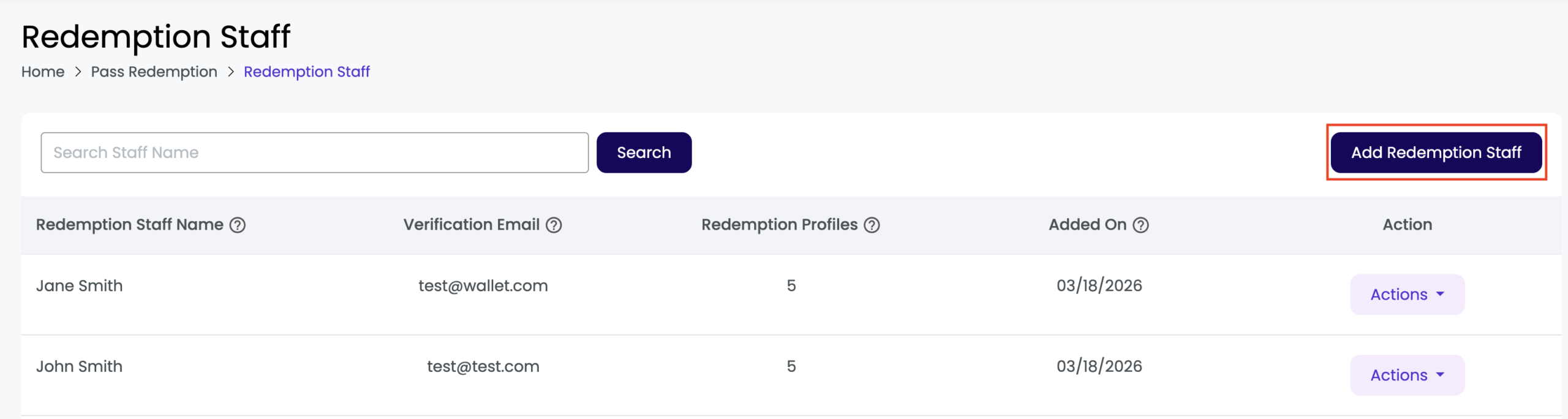
The first step to get started with WalletThat’s URL based redemption is to add your staff members who are authorized to redeem Passes. Navigate to the “Redemption Staff” page to add and manage redemption staff members. Click the “Add Redemption Staff” button to add a new staff member. The redemption profiles column displays how many redemption profiles the staff member is assigned to. When a new staff member is added, they are automatically assigned to all previously created redemption profiles. To unassign the staff member from a profile you will need to edit the redemption profile.
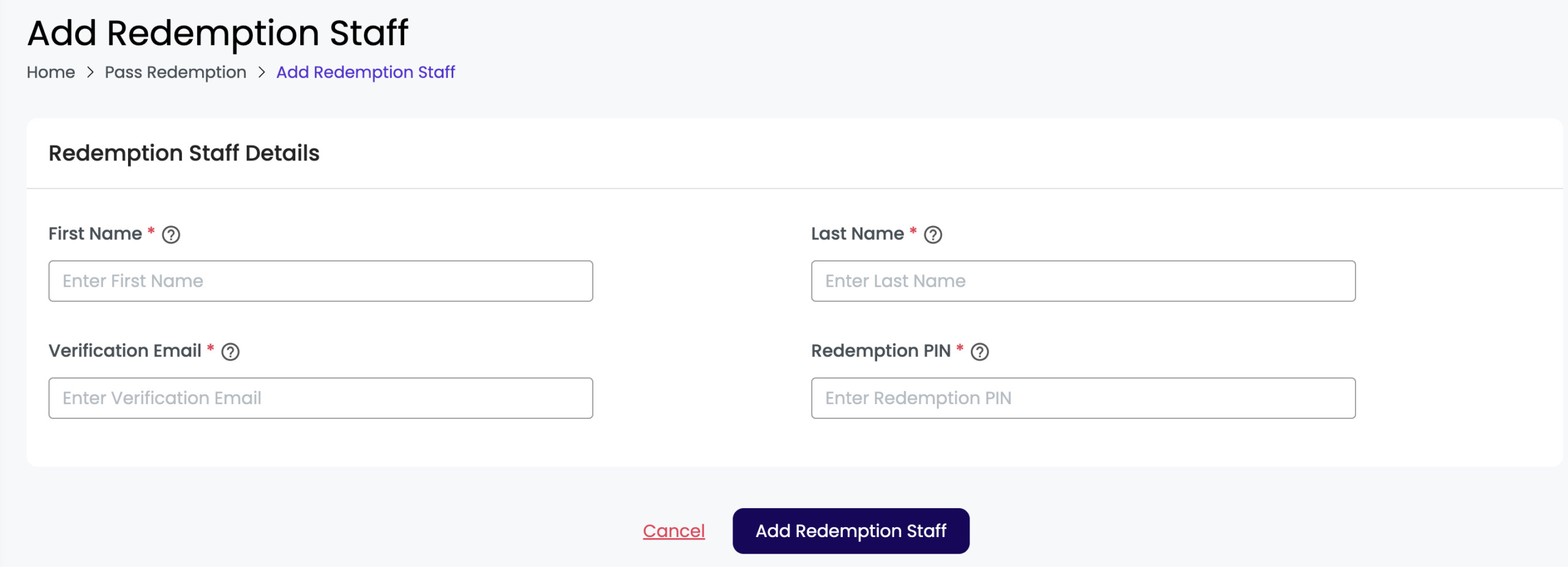
Add redemption staff details by adding the staff members first name, last name, and email address for verification purposes. This email can be the staff member’s email or a manager’s email and is used for first-time activation on the web browser or device. Once activated by entering a one-time password provided via email, a cookie will be set and the browser will be remembered for 12 months.
The redemption PIN will be autogenerated after adding the staff members first and last name. The redemption PIN will be used to validate each redemption staff member’s authority to be able to redeem coupons. This is required. A maximum of 10 redemption PINs can be added in a single redemption profile. When entering the employee first and last name, a 6 digit redemption PIN will be autogenerated for you. You can delete this PIN and enter your own if needed.
Step 2: Create a Redemption Profile #
You will then need to create a redemption profile which will later be linked to a Pass Template. Navigate to the “Redemption Profiles” page to create a new redemption profile. Learn more about how to create a redemption profile here: Creating a Redemption Profile 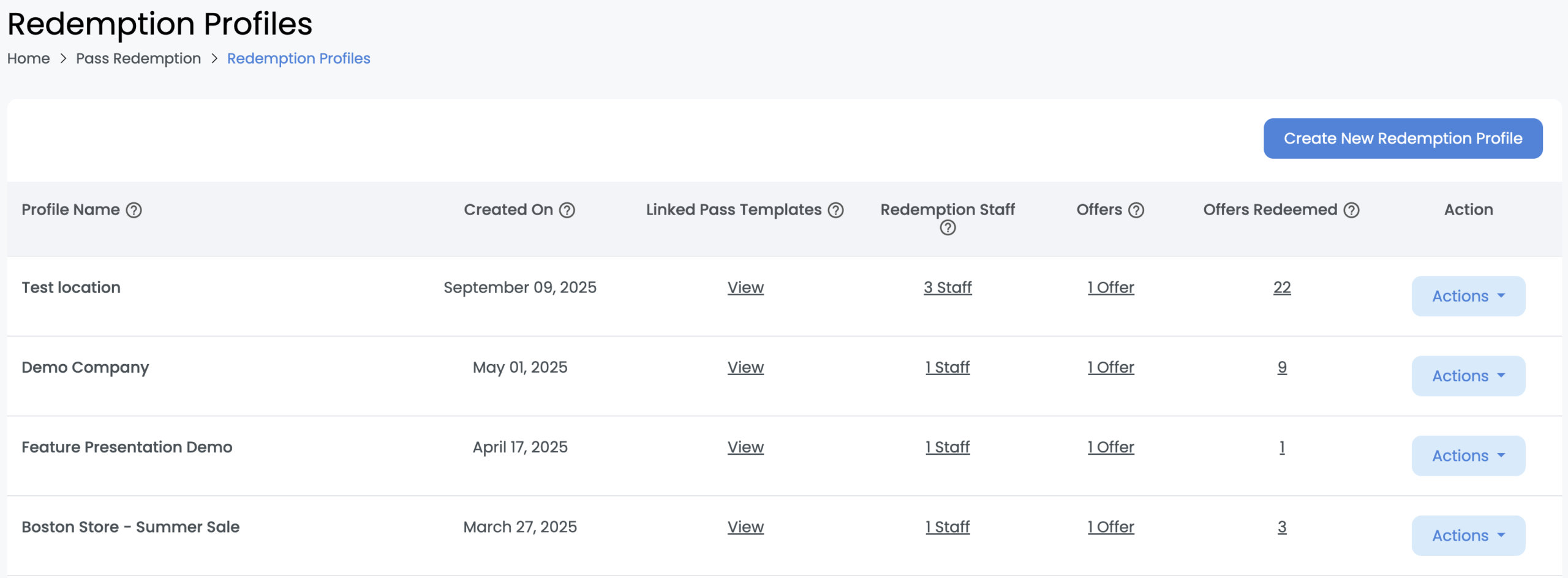
Step 3: Link Your Redemption Profile to a Pass Template #
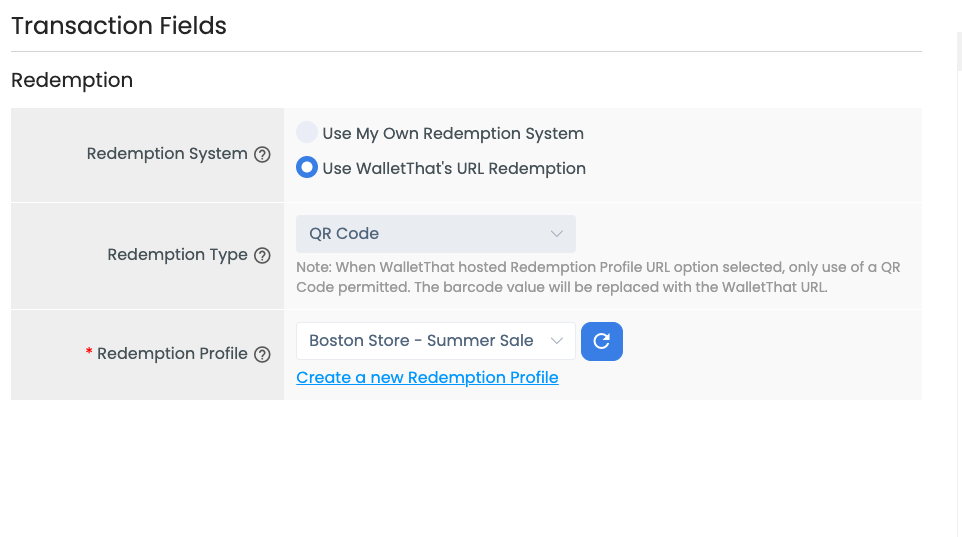
To link the redemption profile to a pass template, navigate to the Pass Template Builder either by creating a new template or editing an existing template. In the transaction fields tab for a coupon or loyalty card pass type, select the “Use WalletThat’s URL Redemption” option. You will see a drop-down menu for the “Redemption Profile” field below. You can then select the profile you previously created or have the option to create a new profile. Clicking “Create New Redemption Profile” will redirect you to the Redemption Profile Builder. Learn more about adding redemption profiles in the Transaction Fields tab in each of these articles:
- Coupon Layout 1: Creating a Pass Template for a Coupon (Layout 1)
- Coupon Layout 2: Creating a Pass Template for a Coupon (Layout 2)
- Loyalty Card Layout 1: Creating a Pass Template for a Loyalty Card (Layout 1)
- Loyalty Card Layout 2: Creating a Pass Template for a Loyalty Card (Layout 2)
Step 4: Redemption Staff Completes Redemption Process #
Redemption Process:
- Client issues coupons to customers & customer installs their coupon in Apple Wallet or Google Wallet.
- Customer opens their coupon in store and shows it to the Redemption Staff.
- Redemption Staff scans the barcode on the coupon using the camera app on their mobile device.
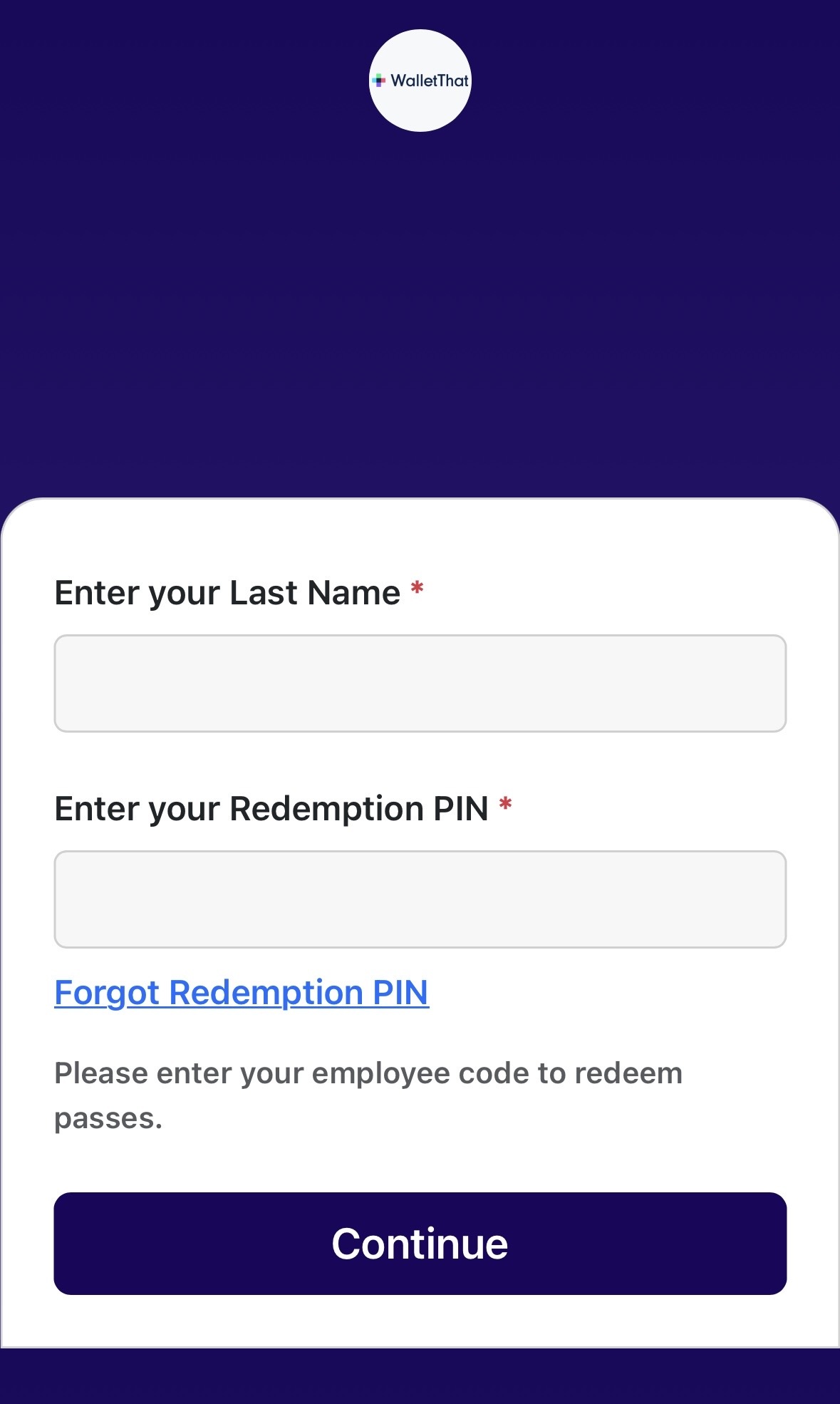
- Redemption Staff enters their last name and valid Redemption PIN.
- If it is the first time a specific device is being used for redemption, the redemption staff member will be prompted to enter a one-time password sent to their email address. The device will be remembered for 365 days.
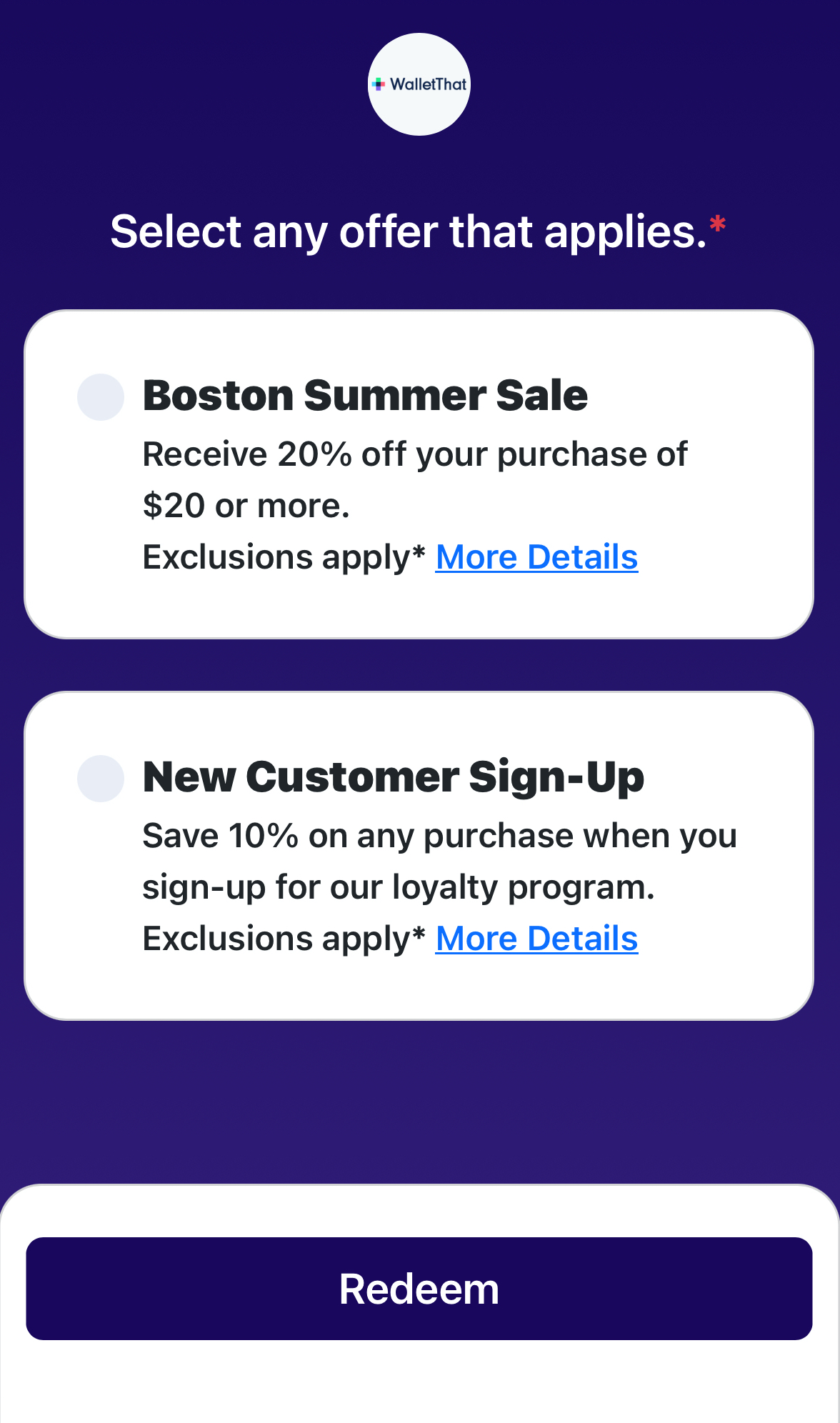
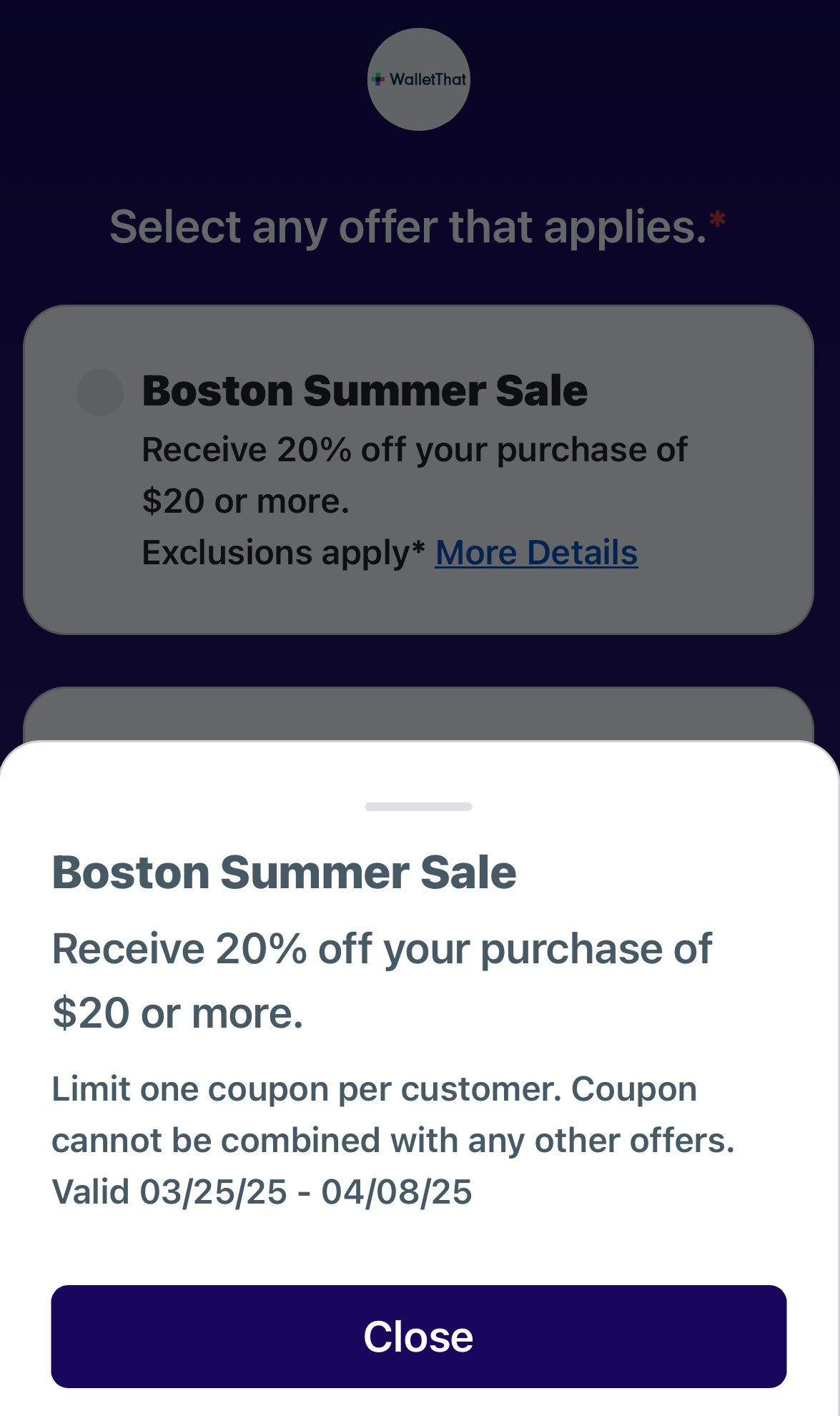
- Redemption Staff member chooses an offer to redeem. Redemption Staff member may click “More Details” to view all restrictions and details about the offer.
- Redemption Staff member clicks redeem. Upon clicking redeem the pass will be marked as redeemed on customers pass.
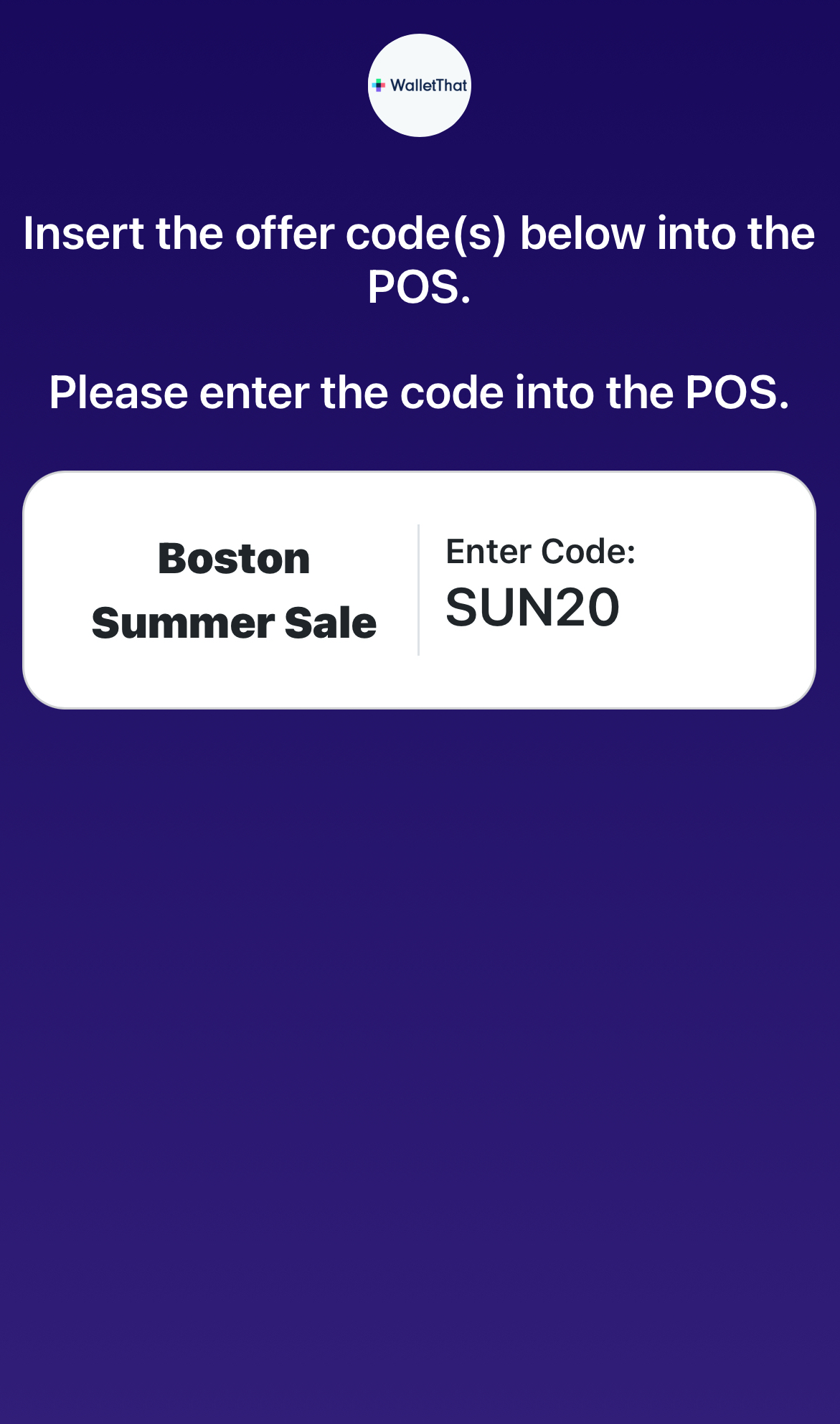
- Redemption Staff member enters coupon code shown into POS system.
Step 5: View Redemption History #
After coupons are redeemed, you can view details regarding each redemption on the “Redemption History” page.
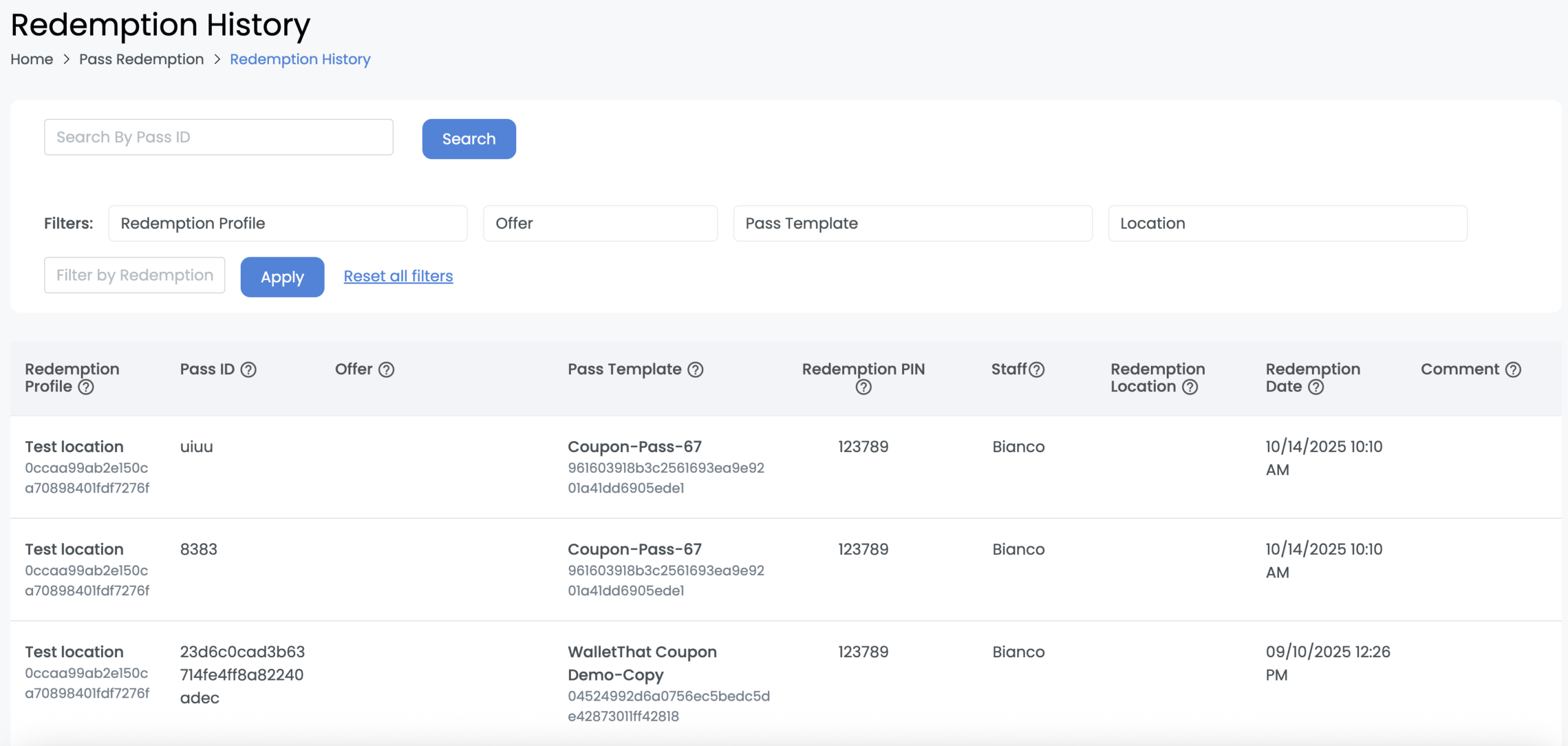
| Field | Description |
|---|---|
| Redemption Profile | The redemption profile that was used to redeem the coupon. |
| Pass ID | The customer’s Pass ID for the coupon that was redeemed. |
| Offer ID | The offer ID/code that was selected by the Redemption Staff member to redeem the coupon. |
| Pass Template | The Pass Template that is linked to the redemption profile used to redeem the coupon. |
| Redemption PIN | The redemption PIN that was entered to redeem the specific coupon. |
| Staff | The Redemption Staff member’s name who redeemed the coupon |
| Redemption Location | The specific location coordinates where the Redemption Staff member redeemed the coupon |
| Redemption Date | The date that the coupon was redeemed. |
| Comment | Any comments left by the Redemption Staff member regarding why the coupon may have failed to be redeemed will be displayed here. |