The Pass Data Manager page is an area for viewing, importing, and exporting data for each Pass Template. All Pass Data for Pass Templates will be shown here. You can filter by active Pass Templates or deleted Pass Templates.
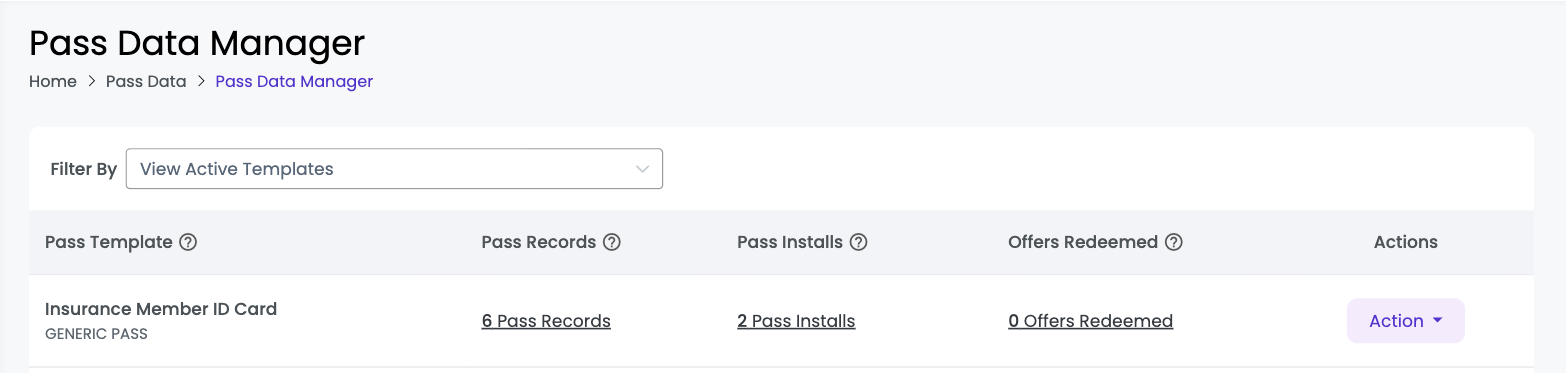
| Setting | Description |
|---|---|
| Pass Template | The name and Pass type of the Pass Template. |
| Pass Records | The number of Pass records stored for each Pass Template. Click the ‘# Pass Records’ link below the column to view information on each Pass record for a specific Pass Template. |
| Pass Installs | The number of Passes that have been installed or uninstalled for a Pass Template. Click on the link below the installs column to view information on the number of installed, uninstalled, or never installed Passes. |
| Actions | Click the ‘Action’ drop-down for a Pass Template to reach Import Records, Export Records, Update Records and Send Notification. Import Records and Export Records were previously separate buttons on this page and on the Pass Records page. |
| Actions: Update Records | Choose ‘Update Records’ from the Action drop-down to update Pass records in bulk for a specific Pass Template. You will be redirected to the Pass Update Manager |
| Offers Redeemed | The number of offers redeemed for the Pass Template. Clicking the ‘# Offers Redeemed’ count will redirect you to the Redemption History page, filtered to this Pass Template. |
Note: The standalone Pass Statistics page has been retired, and the Stats link has been removed from the Pass Data Manager listing. The figures it used to show now appear directly on the Pass Records and Pass Installs pages described below, each with its own date-range filters and charts. The Pass Clicks stat has been removed across the Wallet platform, as clicks are now tracked on the Pass Issuance Link page.
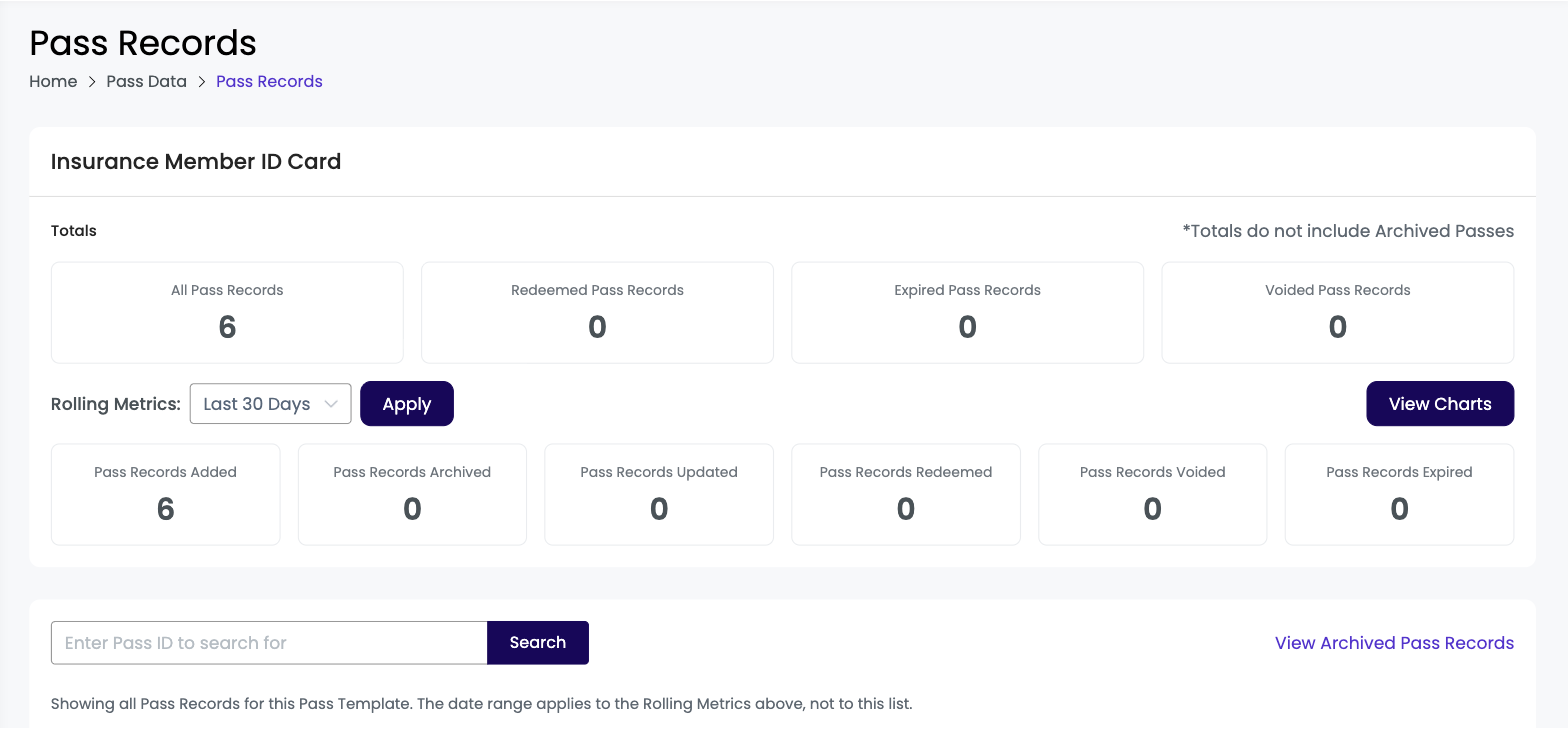
View Pass Records #
This page now shows two groups of figures above the listing. Totals shows All Pass Records, Redeemed Pass Records, Expired Pass Records and Voided Pass Records, excluding archived records. Rolling Metrics shows Pass Records Added, Archived, Updated, Redeemed, Voided and Expired for a date range you select: Today, Last 7 days, Last 30 days, Last 60 days, Last year, or a custom range. A View Charts button plots the same figures for the selected range. Neither the Totals nor the Rolling Metrics counts are clickable, and the date range applies to the Rolling Metrics only — the listing below always shows all Pass Records for the Pass Template.
The Import Records and Export Records buttons have moved off this page into the Actions menu on the Pass Data Manager listing. The Archive Date column now appears only when you are viewing archived records; use the View Archived Pass Records link to switch to that view, where the only figure shown is the number of archived records.
Clicking records next to the name of a specific Pass Template on the Pass Data Manager page will redirect you to the ‘View Pass Records’ page. You can view certain data associated with a Pass ID for that Pass Template. You can also click ‘View’ below ‘Pass Details’ to see a preview of what the Pass looks like on a specific customer’s device.
| Setting | Description |
|---|---|
| Pass ID | The unique identifier from your system to identify the Pass record. |
| Last Updated | The most recent date and time that the Pass associated with a specific Pass ID was updated. |
| Record Created | The date that the record was created for a specific Pass ID. |
| Record Status | The status of the Pass; Active, Redeemed, Expired, or Voided. |
| Expiration Date | The date and time of the when the Pass expires. |
| Archive Date | The date and time of when the Pass record was archived. |
| Action: View Pass Record | Clicking the ‘View’ link below the Pass Details column will redirect you to the ‘Pass Details’ page where you can view a preview of the Pass for a specific Pass ID and update the record. |
| Action: Get Install Link | Clicking ‘Generate’ will generate a Pass install link and QR Code to install the Pass. |
| Action: Copy | Clicking ‘Copy’ will replicate the Pass record. You will need to enter a new Pass ID to replicate the record. |
| [X] | Clicking the [X] button followed by the ‘Delete’ button at the bottom will delete the Pass record and Pass data associated with that Pass ID. |
Pass Installs #
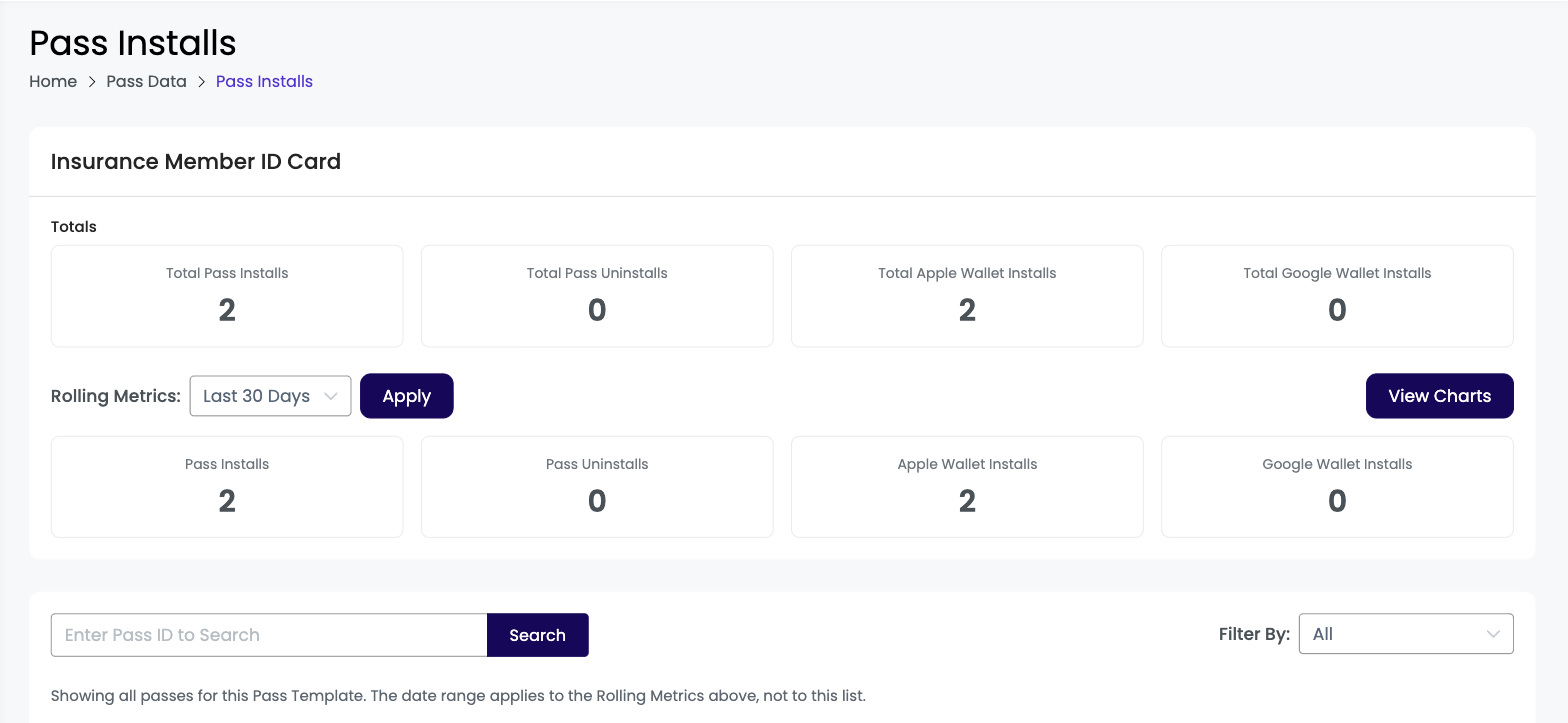
This page now shows install figures above the listing. Totals covers Total Pass Installs, Total Pass Uninstalls, Total Apple Wallet Installs and Total Google Wallet Installs. Rolling Metrics shows the same four figures for a date range you select, and a View Charts button plots them, including a comparison of installs on Apple Wallet against Google Wallet. The figures can be filtered by Today, Last 7 days, Last 30 days (the default), Last 60 days, Last year, or a custom date range.
Clicking a Rolling Metrics count filters the listing below to just those Passes. While that filter is active a dismissible chip appears above the listing so it is always clear the view has been narrowed, and one click clears it. The Totals counts are not clickable. A short label near the listing states whether the listing is scoped to the selected date range or showing all Passes.
A filter next to the Search button lets you switch between All, Installed, Uninstalled and Never Installed. When no Passes have been installed yet, the page reads “No Passes have been installed yet. Please check again later.”
This list shows all Passes that have been generated for a specific Pass Template. You can filter by Passes that have been installed, uninstalled, or never installed.
| Setting | Description |
|---|---|
| Last Updated | The date on which the Pass was last updated. |
| First Generated | The date on which the Pass has been generated. |
| Pass ID | The unique identifier from your system to identify the Pass data. |
| Installed | The number of devices that have installed the Pass. Clicking the number link will redirect you to the ‘Pass Installations’ page, where you can view additional information on the device that had installed the Pass. Additional information includes: the pass ID, type of wallet, install ID, current status and the installed date. |
| Uninstalled | The number of devices that have uninstalled the Pass. Clicking the number link will redirect you to the ‘Pass Installations’ page, where you can view additional information on the device that had uninstalled the Pass. Additional information includes: the pass ID, type of wallet, install ID, current status and the uninstall date. |
| View Record | Clicking this will redirect you to the ‘View Pass Records’ page for that specific Pass Template. |
| Update Record | Clicking the ‘Update Record’ link will redirect you to the ‘Update Pass’ page, where you can update any dynamic fields of the Pass. Please refer to the Update Individual Pass Records Page for additional information on updating individual Passes. |
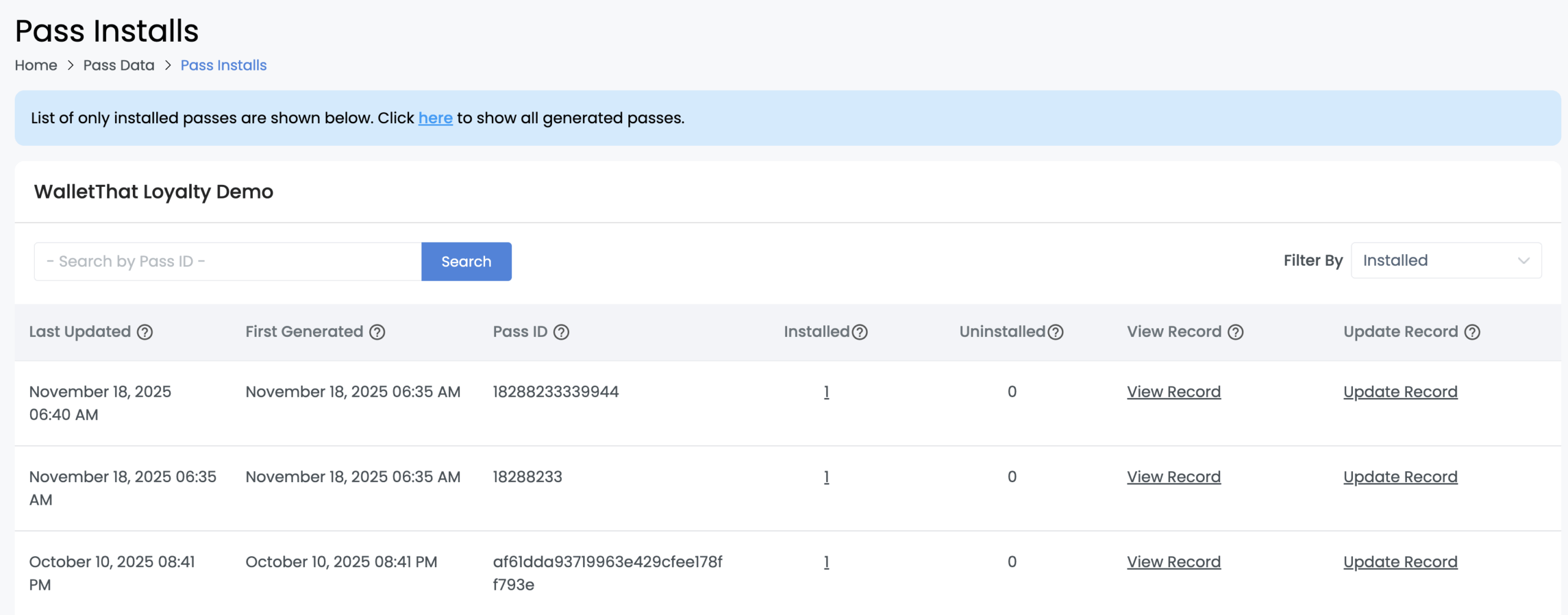
Installed Passes
Filtering by ‘Installed’ shows all Passes that have been installed for a specific Pass Template. You can click the number below installed to view more data associated with each ‘pass-id’.
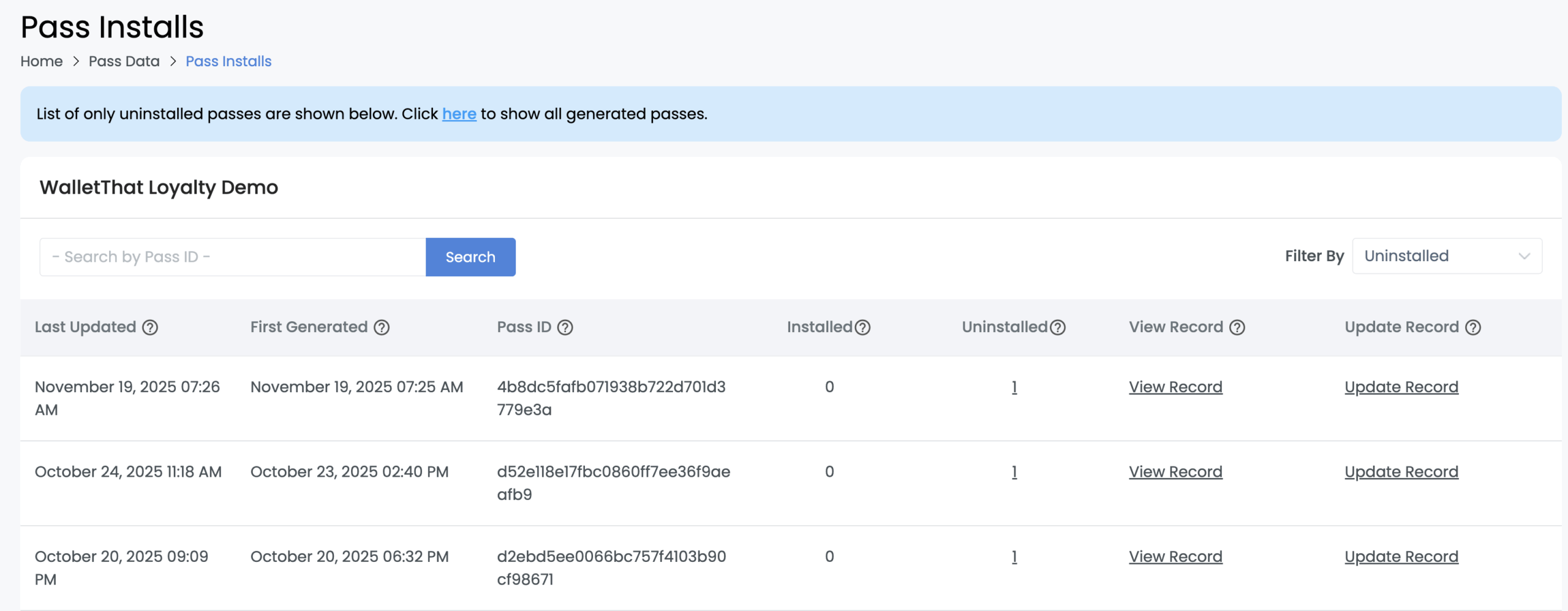
Uninstalled Passes
Filtering by ‘Uninstalled’ shows all Passes that have been generated, installed, then uninstalled for a specific Pass Template. You can click the number below uninstalled to view more data associated with each ‘pass-id’.
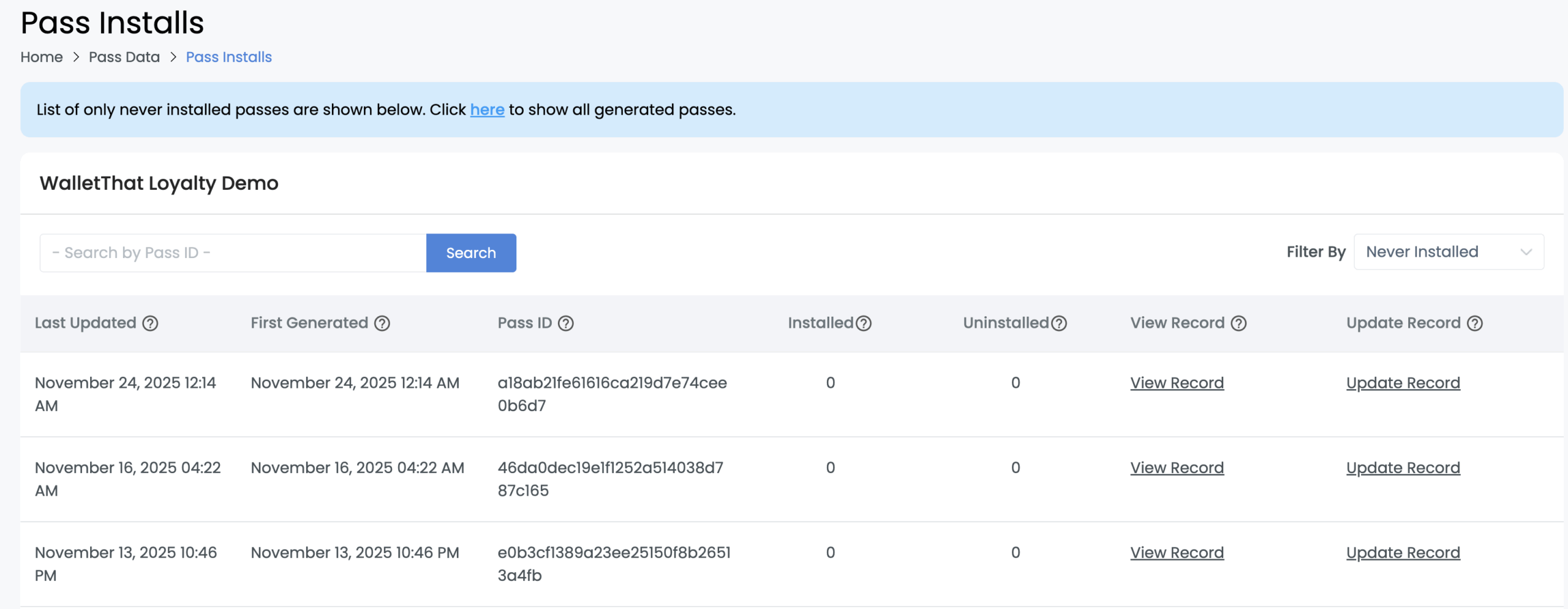
Never Installed Passes
Filtering by ‘Never Installed’ shows all Passes that have been generated but not yet installed for a specific Pass Template. You can click the number below never installed to view more data associated with each ‘pass-id’.