If you no longer wish to use your WalletThat account, you can cancel it at any time directly from your dashboard. Follow the step-by-step instructions below to ensure a smooth and secure account cancellation process.
Note: Cancelling your WalletThat account will permanently delete all associated data 7 days after cancellation. This includes:
- Credit Card Information
- Pass Templates
- Pass Issuance Links
- Pass Issuance Forms
- Redemption Profiles
- All Pass Record Data
This action is permanent and cannot be undone. Please ensure you download or back up any important information before proceeding.
Step 1: Log in to Your WalletThat Account
#
Log in to your WalletThat account using your credentials.
Once logged in:
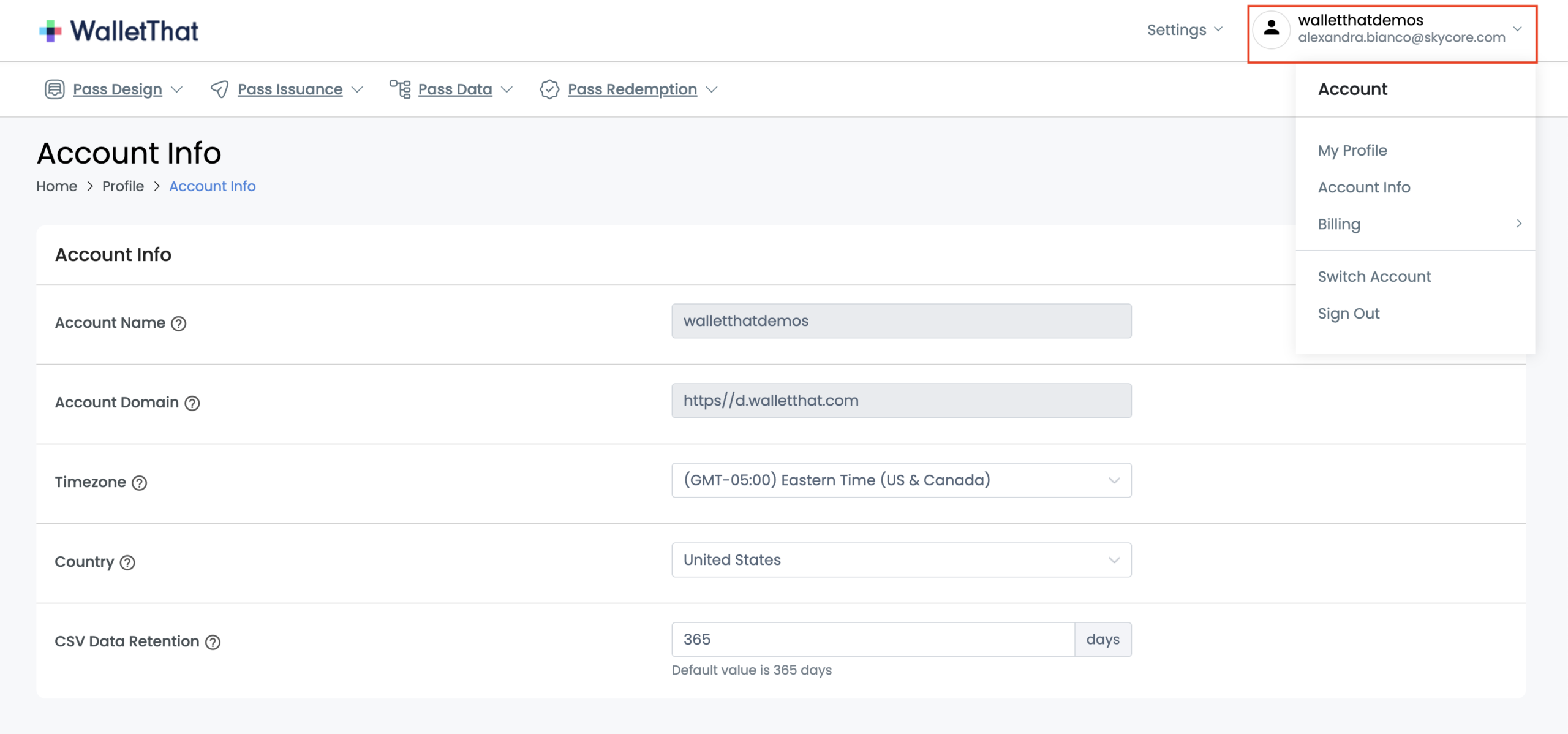
- Navigate to your account name located in the top-right corner of the dashboard.
- Click your account name to open a dropdown menu with different account options.
Step 2: Open Billing Summary #
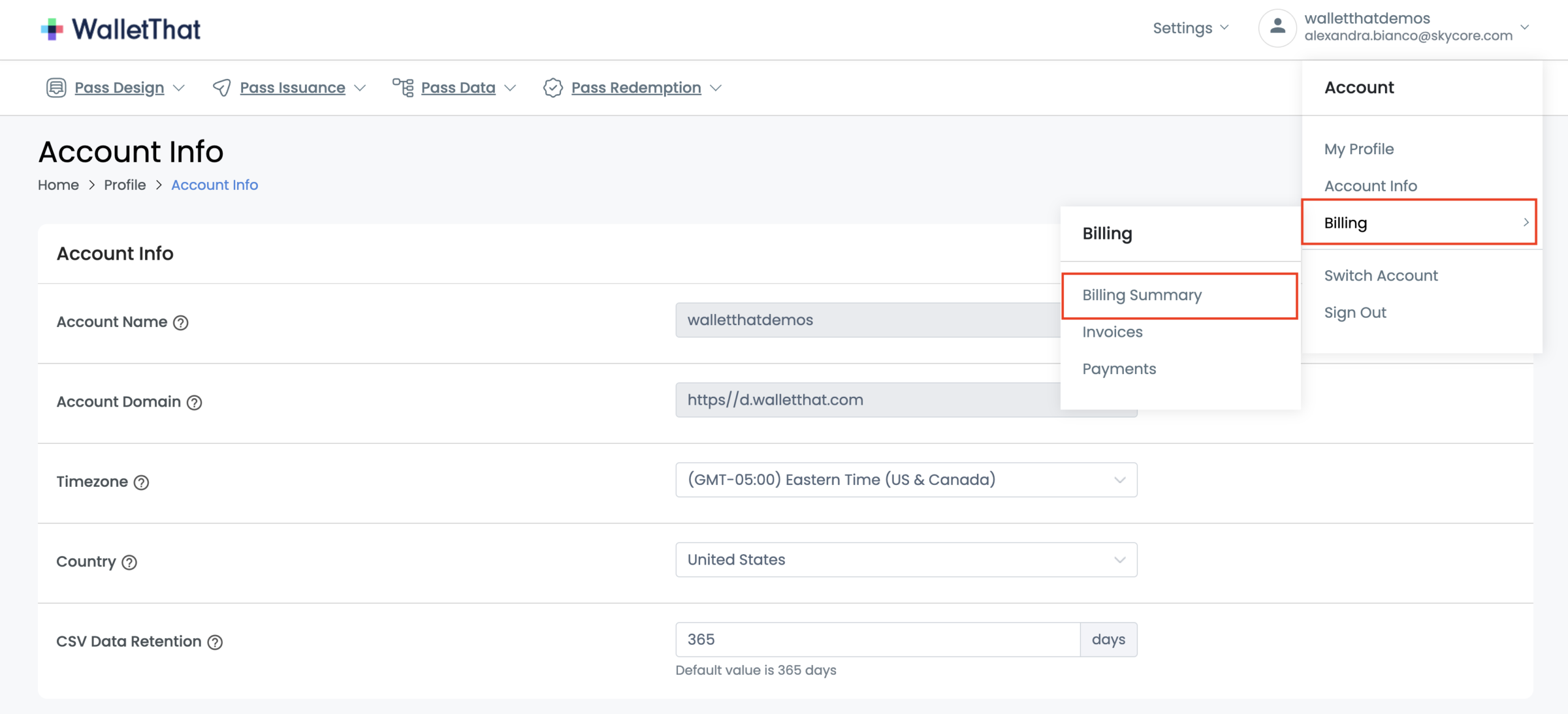
From the dropdown menu:
- Click Billing.
- Then select Billing Summary to view your subscription and billing details.
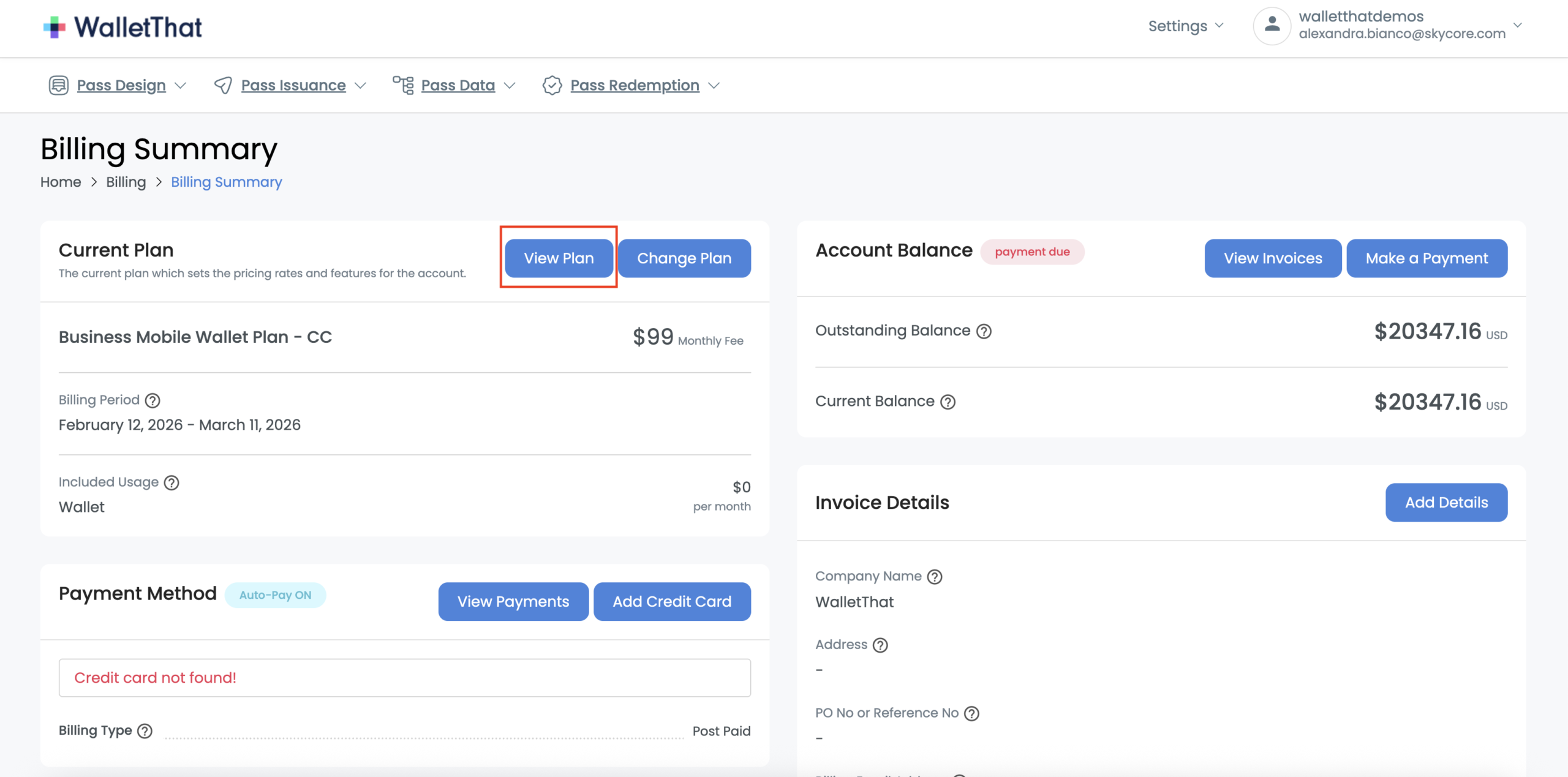
This page displays your current plan and subscription status.
Step 3: View Your Current Plan #
On the Billing Summary page:
- Select View Plan to access your subscription management options.
Step 4: Select Cancel Account #
Within your current plan details:
- Select Cancel Account.
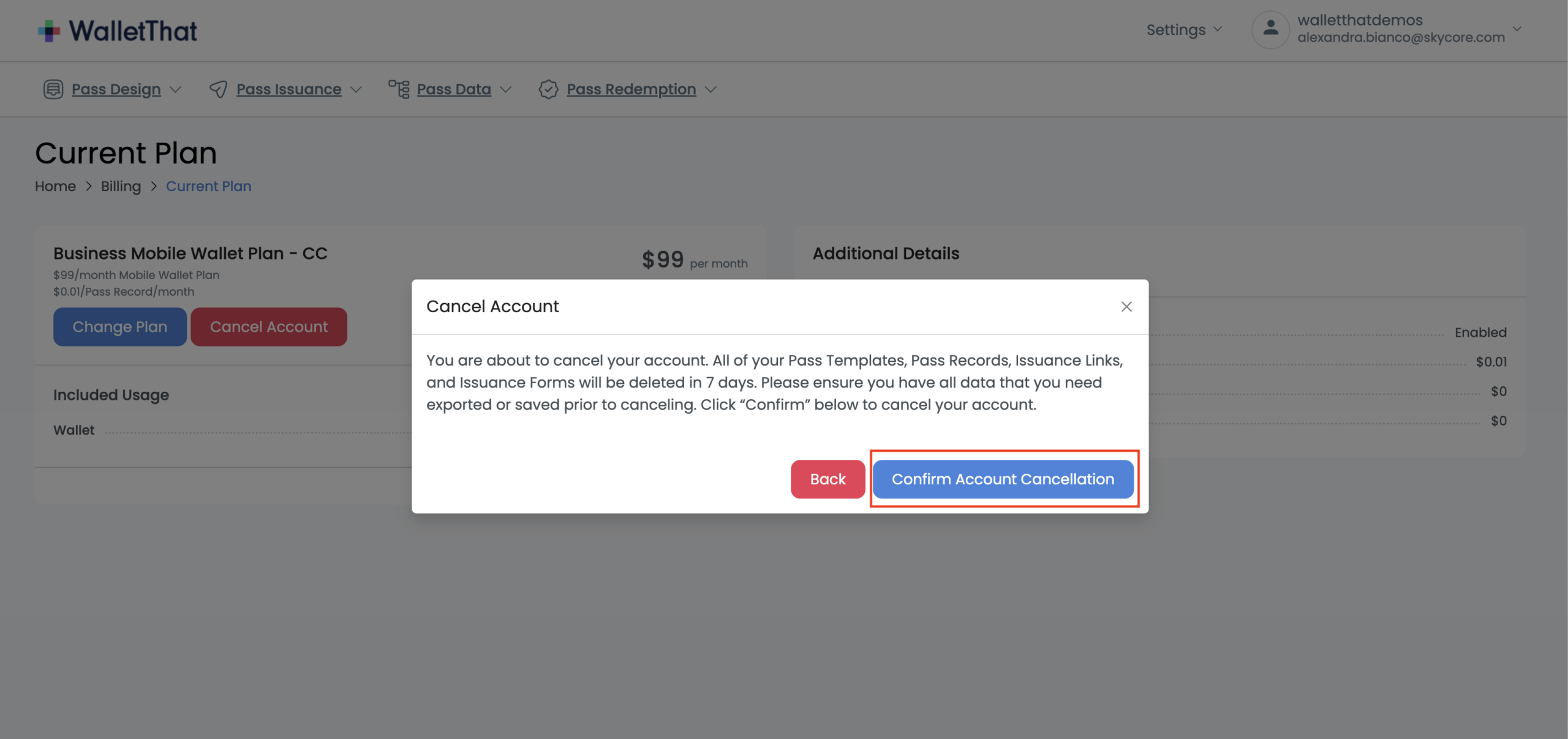
You will be prompted to review important information regarding data deletion and account termination before proceeding.
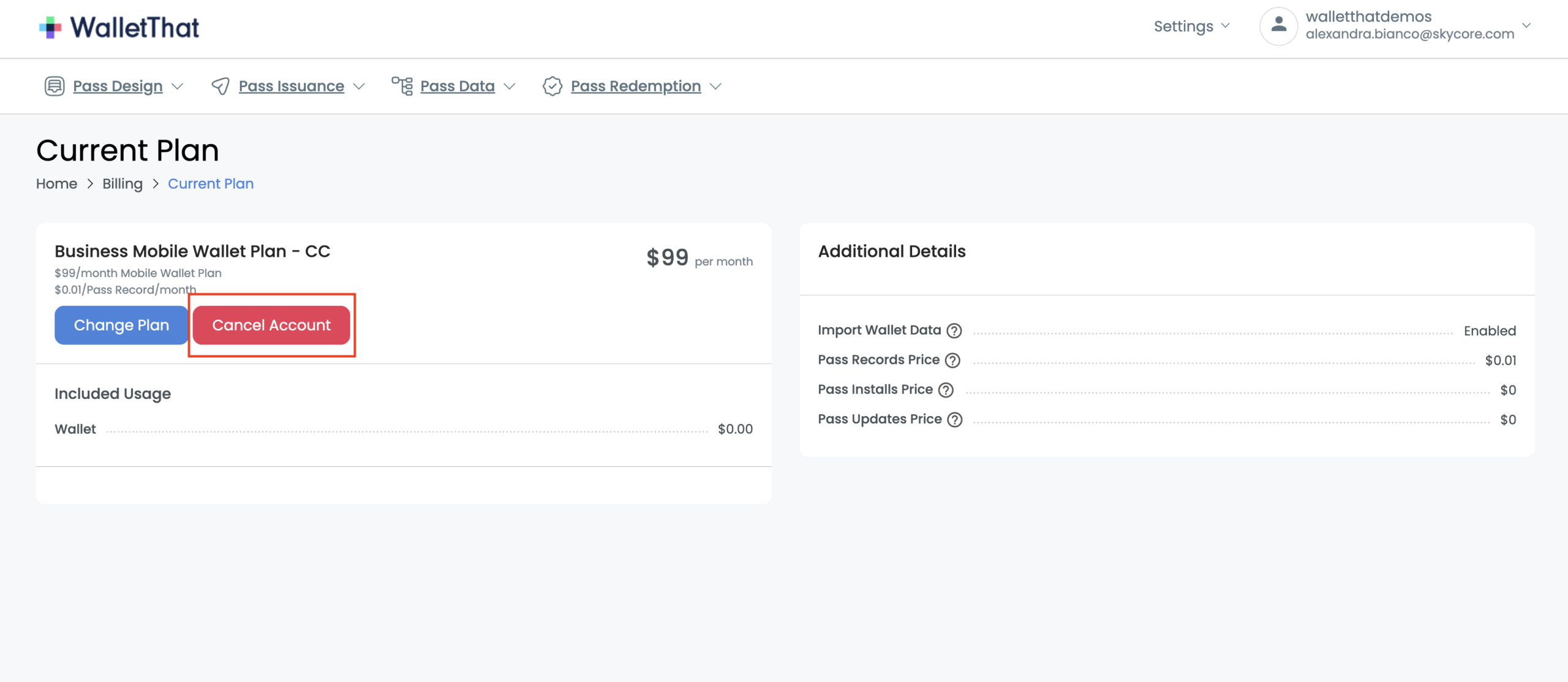
Step 5: Confirm Account Cancellation #
Confirm your request when prompted to finalize the cancellation.
Once confirmed:
- Your account will be scheduled for cancellation. You will see a banner message on your dashboard confirming successful cancellation.
- All associated data will be permanently deleted after 7 days.
- If you have any remaining balance on your account, your credit card on file will be charged within the next 24 hours. Please contact your account manager if you have any questions.
- You will also receive a confirmation email regarding your cancellation request.