
The Pass Templates page is where you can view and edit all of the Pass Templates you have previously created. A Pass Template is an outline of how the Pass will appear on the iOS or Android device. When you add dynamic data to the Pass, the Pass Template preview will display the default data.
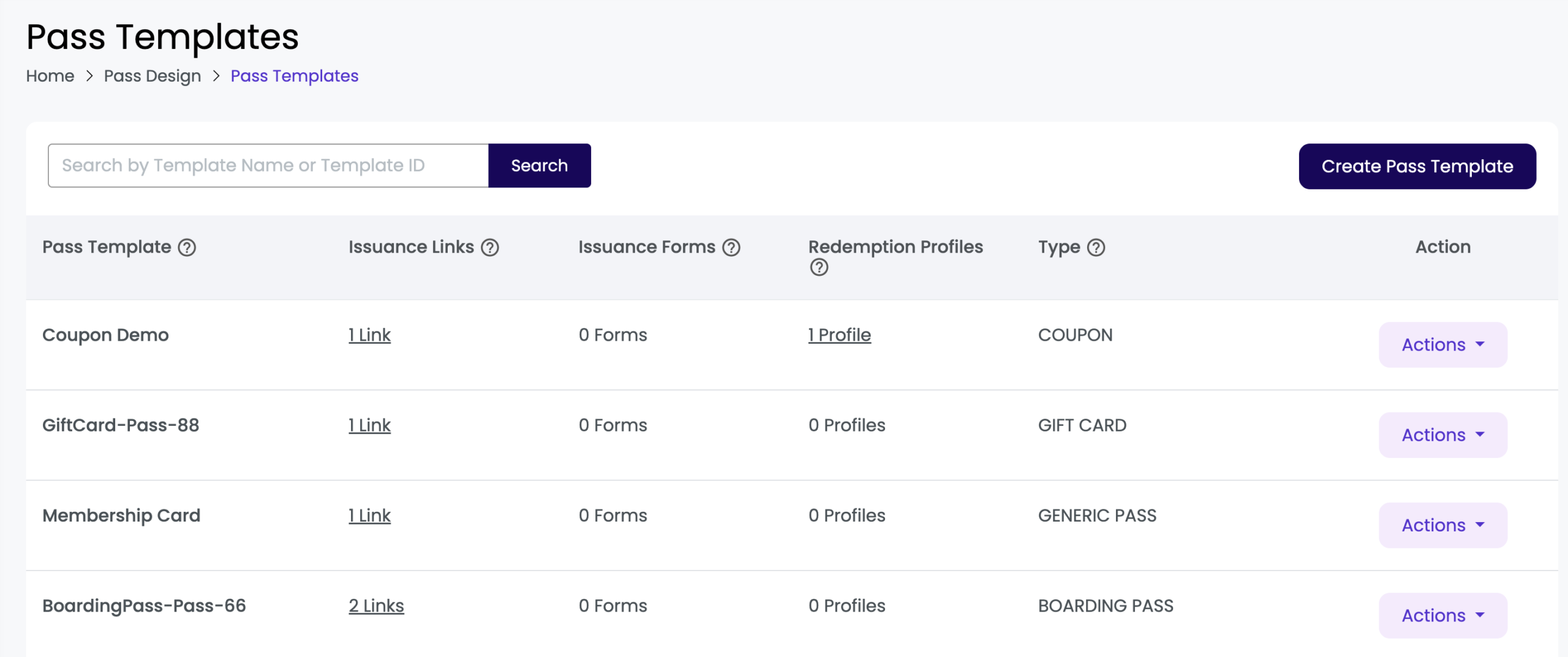
| Setting | Description |
|---|---|
| Create Pass Template | This will bring you to the Pass Template Builder page where you will be able to design and add static text to your wallet Passes. |
| Pass Template | The name and ID of the Pass template. The Pass Template ID will be required when adding Pass data to the template or generating Passes from the API. |
| Issuance Links | The number of Pass Issuance Links associated with this Pass Template. Clicking the number in this column will redirect the user to the Pass Issuance Links page, filtered by that specific Pass Template. |
| Issuance Forms | The number of Pass Issuance Forms associated with this Pass Template. Clicking the number in this column will redirect the user to the Pass Issuance Forms page, filtered by that specific Pass Template. |
| Redemption Profiles | The number of Redemption Profiles associated with this Pass Template. Clicking the number in this column will redirect the user to the Redemption Profiles page, filtered by that specific Pass Template. |
| Type | The Pass type: Gift Card, Boarding Pass, Coupon, Event Ticket, or Loyalty Card |
| Action: Preview | Click the preview link to display a preview of the Pass Template. The default data will serve as a placeholder for any dynamic data. |
| Action: Replicate Template | Create an exact copy of a Pass Template. The new/replicated template will have its own unique Pass Template ID. The replicated template will have the same name as the original template with the text “Copy” added to the end of it. While replicating, you can also select the Apple Pass Type ID and Google Issuer ID to use for the new template — these cannot be changed after the template is created. Passes associated with the original template will not get replicated. Once replicated, changes to either the original template or to the replicated template will not affect each other. |
| Action: Edit | Clicking the “Edit” link will open the template in the Pass Template Builder so that it may be edited. |
| Action: Overview | Clicking “Overview” will display a detailed overview regarding specific Template Details. |
| Action: Delete | Delete a Pass Template from the platform by selecting the delete button for the Pass Template you want to remove. |
Updating a Pass Template #
If you go back and edit a dynamic field within a Pass Template from the Pass Templates page and there are already Passes installed for this template, you will see this message upon clicking ‘Save Template’:
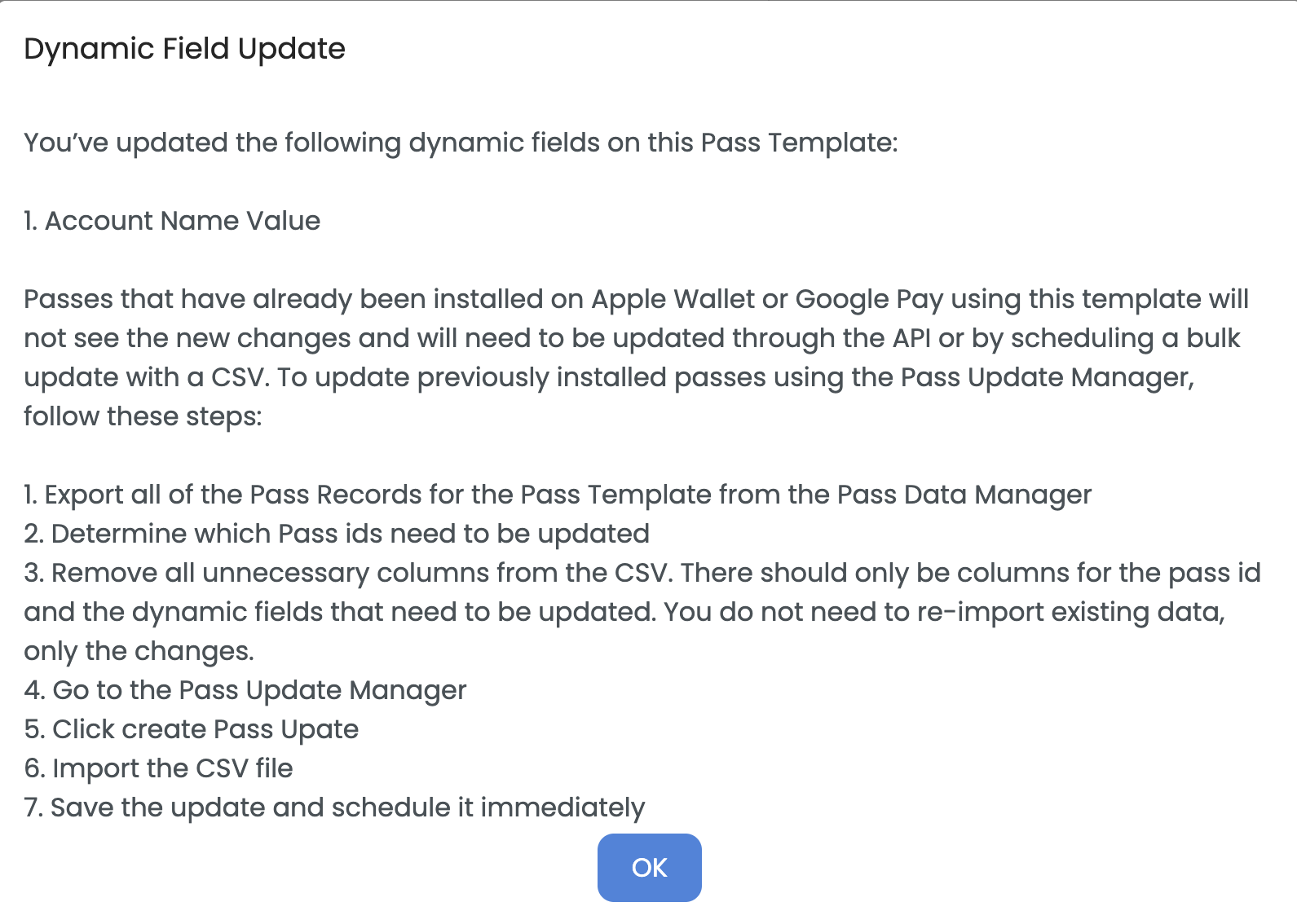
You can close the Dynamic Field Update Information message, which will redirect you back to the Pass Templates page. You can then click “Pass Update Manager” from the “Pass Data Manager” which will redirect you to the Pass Update Manager page. Then, on the Pass Update Manager page, you can create and schedule an update for the dynamic data that you need changed by uploading a CSV file containing the new data and pass-IDs that need to be updated.
Pass Templates FAQs #
What is the difference between a ‘Pass Template’ and ‘Pass’?
A Pass Template is an outline of how a Pass will appear, while a Pass is the actual wallet object that will be sent to your customer. The Pass Template shows the Pass with the placeholder or default data.
What happens when I edit a Pass Template?
After you make an update on a Pass template, the Pass generated following the update will reflect the new version.
What happens when I delete a Pass Template?
When you delete a Pass template, it will no longer appear on the Pass Templates page. Also, the new users will not be able to request this Pass. However, those who have already received the Pass will still have access to it. Moreover, you can view Pass records in the ‘Pass Data Manager’ page.